
How SCREENish protects the data it collects
Time tracking with screenshots is one of the most sensitive things a company can install on an employee's machine. A screenshot can catch a password manager mid-open, a customer record, a private message, a bank page. The question that matters is not whether a vendor says "we take security seriously" — it is what the system does and does not allow, by construction.
This page describes that. It is written to be checkable: every guarantee below is a property of how the product is built, not a policy someone can forget to follow.
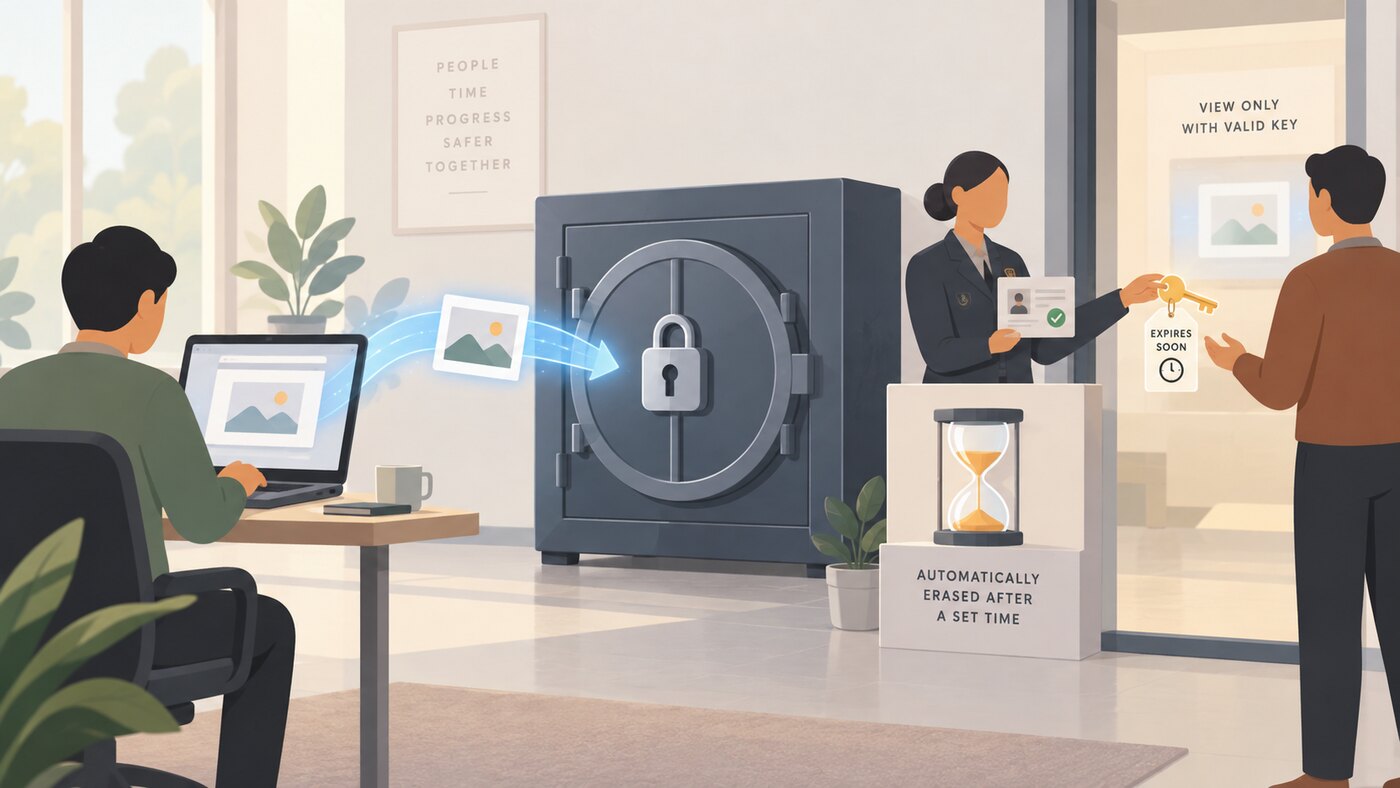
Screenshots never pass through our servers
When the tracking application captures a screenshot, it does not send the image to SCREENish. It uploads the file directly to encrypted object storage, using temporary credentials that are issued per session and scoped to that one employee's own folder. Our web servers receive only the metadata — timestamp, activity counters, the note and the program list.
The consequence is worth stating plainly: there is no point in our infrastructure where screenshot images accumulate in transit, and a compromise of the web tier does not hand anyone a pile of images.
Viewing one requires a permission check first
Screenshots, thumbnails, mobile photographs and face-verification artefacts are not publicly readable. A browser never holds a lasting link to one.
To display an image, the dashboard asks an authorisation endpoint, which checks that this particular signed-in person is entitled to that particular object — and only then issues a short-lived signed URL. Worklog thumbnails are resolved the same way, in batches, before any image is requested. The links expire on their own.
Encryption
The service is served over HTTPS only. Plain HTTP and the apex domain are permanently redirected, and every response carries HTTP Strict Transport Security covering all subdomains, with preload. Connections use TLS 1.2 or TLS 1.3; earlier versions are not accepted.
Rather than ask you to take that on trust: Qualys SSL Labs rates our TLS configuration A+, with forward secrecy against every tested browser and six cipher suites offered, all of them authenticated encryption — no CBC, no 3DES, nothing legacy. Run the test yourself; it takes about two minutes and we do not control the result.
All monitoring data — screenshots, thumbnails, mobile photographs, face-verification composites and facial reference photographs — is encrypted at rest with AES-256 server-side encryption.
The data deletes itself
Screenshots and the images beside them are removed 45 days after capture. That is enforced by the storage layer's own lifecycle rule, not by a script that can quietly stop running, and it applies to every customer folder without anyone remembering to switch it on.
Other categories have their own periods — screenshot metadata, application names and window titles, activity records, sign-in records — and each one is stated, with its exact period, in Annex I of our Data Processing Agreement.
What integrations can carry, and what they cannot
SCREENish offers an API, outbound webhooks and calendar or spreadsheet feeds. Everything they are allowed to emit is on an explicit allow-list of hours, counts, identifiers and review outcomes.
No API route, webhook or feed can return a screenshot, an application name, a window title, or biometric data. This is not a setting an administrator can loosen; a payload field that is not classified is refused by a test before it can ship.
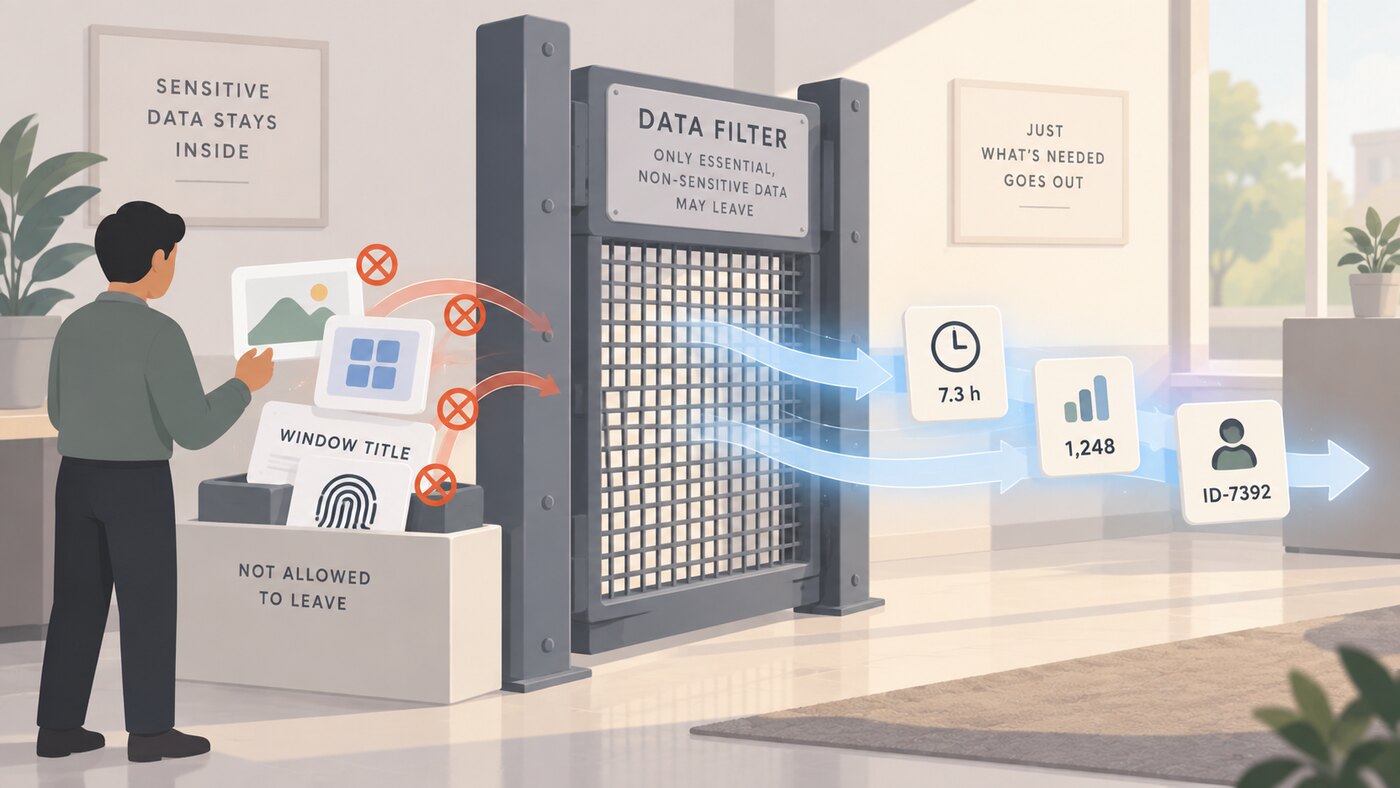
API keys are stored only as a one-way hash and shown in full once, at creation. They are bound to a single account, rate limited, revocable instantly by the customer or by us, and every use is logged with its time and origin. Outbound webhooks are signed with a secret unique to each destination so the receiver can verify the request came from us, and are delivered only over HTTPS. Feed addresses carry a token the customer can revoke.
Accounts and sessions
Two-factor authentication uses TOTP with backup codes, and where it is enabled it is enforced at the API layer rather than only at the login screen: a session that has passed the password but not the second factor is refused by every interface, and cannot turn two-factor off, regenerate backup codes or register a trusted device.
Four kinds of session exist — employer, employee, delegated administrator and project-share recipient — each with its own dashboard, and each API rejects the others. A project-share session is bound on the server to the one project it was issued for; the scope is never taken from the browser. State-changing requests carry a CSRF token that is verified with a timing-safe comparison, and a request that fails it is blocked outright, not merely logged.
Consent and audit trails
Face verification runs only where the employer has enabled it and the employee's consent is recorded. Consent is versioned and kept with an immutable audit trail, so it is possible to show what was agreed, by whom, and when. Terms acceptance is recorded per version, with timestamp and method.
Administrator actions and support sessions are recorded as well. Where a support session is opened on an account, the account holder is notified.
What the employer can switch off
Security is not only our side of the line. Screenshot capture can be turned off entirely for an assignment; capture can be limited to a single monitor; and a blur mode can be applied so that screen contents are obscured before anyone sees them. A privacy control that an employer cannot reach is not a privacy control, so these sit in the dashboard rather than in a support ticket.
Blur is applied on the worker's machine, which is what makes it real. The image is obscured in the tracking application before it is ever uploaded, so an unblurred copy never exists anywhere — it is not a display setting applied after the fact. The consequence is that blur depends on the version of the app that is running.
In practice that resolves itself: the current app updates itself as new versions are released, so anyone running it is on the latest one without a person having to do anything. The one gap is the older, legacy application, which does not update into the current one — it has to be replaced.
That gap closes with a button. An employer can refuse the legacy app, for one person or for the whole team, from the Projects tab. An outdated app is then turned away at sign-in and told to install the current one; it does not get to track at all. From that point the app keeps itself current on its own. Where someone works for more than one employer, the strictest setting wins — one employer's requirement cannot be satisfied by another's leniency.
The same fail-closed reasoning runs through the blur itself: if text recognition fails, if memory runs short, if the work takes too long, or if the screen looks like a configuration file full of credentials, the whole screen is blurred rather than part of it. When the privacy mechanism breaks, it shows less, never more.
What we do not have
SCREENish does not hold SOC 2 or ISO 27001 certification. Vendors of our size often imply one without holding it; we would rather say so.
What we offer instead is a published Data Processing Agreement whose annexes state, in specific terms, what is processed, where it goes, how long it is kept and which technical measures are in place — together with the Standard Contractual Clauses and a transfer impact assessment for data reaching the United States. It is a longer document than a certificate, and it says more.
Reporting a vulnerability
If you believe you have found a security problem in SCREENish, write to info@screenish.com with enough detail to reproduce it. We will confirm receipt, keep you informed while we investigate, and we will not pursue anyone who reports in good faith and does not access or retain other people's data while doing so.
Questions we are asked
Can a SCREENish employee look at our screenshots?
Access requires an authorisation check tied to a signed-in identity, and support sessions on a customer account are recorded and notified to the account holder. Images are not browsable: there is no listing, and no lasting address to share.
Where is the data stored?
Application hosting is in the European Union; object storage and transactional email are in the United States. The sub-processors, their locations and the transfer mechanism for each are listed in Annex III of the DPA, along with the transfer impact assessment.
What happens to our data if we close the account?
Screenshots age out on the 45-day rule regardless. Account closure deletes the API credentials immediately. The deletion and return obligations are set out in clause 10 of the DPA.
Can an employee get a copy of what was collected about them?
Yes. We produce Article 15 access exports on request, covering the records held about that individual.
Blur runs in the app. What stops an old version from uploading without it?
Two things do. The current app updates itself as new versions are released, so anyone on it is already running the latest one. The exception is the older legacy application, which does not update into the current one — and an employer can refuse it outright, for a single worker or for the whole team, from the Projects tab. A legacy app is then turned away at sign-in and told to install the current one, rather than being allowed to track without the newer protections. Where someone has more than one employer, the strictest setting applies.
Will you answer a security questionnaire?
Yes. Details that are deliberately not published here — exact parameters, internal specifics and the current state of remediation work — are provided to customers and prospective customers on request, under the DPA's confidentiality terms.