
Faked activity detection for remote teams
A timesheet can say eight hours. A mouse jiggler, an auto-clicker or a five-line macro can say it too. Tools that fake keyboard and mouse input cost a few dollars, take minutes to set up, and produce activity that an ordinary time tracker happily records as work.
SCREENish is built for exactly this problem: it flags stretches of tracked time that look like they were produced by a tool rather than a person, explains in plain language why each stretch was flagged, and puts the decision in front of a human. Nothing is deducted, rejected or reported automatically — detection asks a question, a manager gives the answer.
What counts as faked activity
"Faked activity" covers every trick that makes a computer look busy while nobody works:
- Hardware mouse jigglers — a USB dongle or a turntable under the mouse that produces small, endless movement.
- Software jigglers and auto-clickers — programs that move the cursor or click on a timer.
- Macros and auto-typers — scripts that replay the same keystrokes or mouse paths on a loop.
They differ in one important way: software tools inject synthetic input that the operating system itself can mark as not coming from real hardware, while a hardware jiggler produces input that is technically real — just meaningless. Catching both takes two different layers, and SCREENish uses both. The full taxonomy is in How to Tell If Activity Is Real.
How SCREENish detects it
Two layers work together on every stretch of tracked time:
- Flagged input. Modern operating systems label input events that were injected by software rather than produced by a physical device. Activity built out of labelled events is the clearest possible signal, and SCREENish records it.
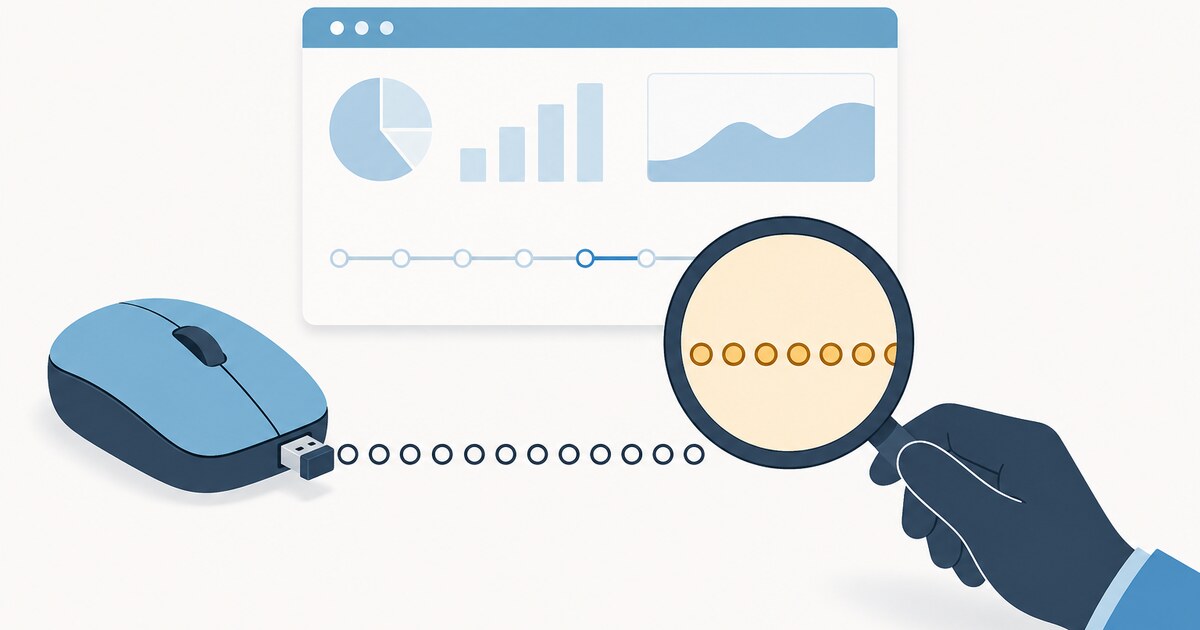
- Inferred patterns. Input that is technically real can still look nothing like a person working. Endless uniform movement with nothing changing on screen does not resemble any genuine workflow — and because SCREENish captures screenshots at random moments throughout tracked time, the recorded activity can be compared against what was actually on the screen.
SCREENish deliberately does not publish its thresholds or tuning values — that would be a manual for beating them. What it does publish, on every flagged card, is the reason that specific stretch was flagged, so the person reviewing it knows exactly what they are looking at.
Every flag goes to a person, not a penalty
Flagged periods land in a queue called Activity review. Each card shows why the period surfaced, links the screenshots behind it, and calls out benign explanations before you can act — a remote-desktop session, for example, can resemble injected input, and when SCREENish recognises one the card says Benign explanation detected — check before acting.
From the card you choose one of three actions: Confirm the finding, Dismiss it as a false positive, or Need more info to keep looking. Until you confirm, nothing changes for the employee — their time stands, their pay stands, and no message is sent. The walkthrough is in Activity Review: Checking Unusual Activity.
Looking specifically for jiggler coverage? The dedicated page is Mouse Jiggler Detection Software.
Detection you can put in writing
Detection works best when the rules are known in advance. Because SCREENish never auto-penalises, you can honestly promise your team three things: no algorithm touches anyone's time, false positives cost nothing, and every flag comes with its reasoning attached. If you want that promise as an actual document, start from our free fair mouse-jiggler policy template — it protects idle time and rules out numeric activity floors, and it pairs with how the product actually behaves.
The context around every flag
A flag is never the only evidence on the table. The rest of the work log fills in the picture:
- Activity levels from real input. SCREENish measures activity from input counts, not content — and faked input is exactly what the detection layers above exist to subtract.
- Screenshots at random moments — what was actually on screen during the flagged stretch.
- Machine and system info — the hardware an employee tracks on, useful when a pattern might have a hardware explanation.
- Automatic screenshot approval — rules that hold back only idle-heavy screenshots, so review time goes where it matters.
Suspicion that someone is faking hours is often really a question about where their hours go — the overemployment detection page covers that side.
 See what your tracked time is really made of
Flagged input, screenshots and the review queue, working together on your own team's work logs — with people, not algorithms, making the final call. Free to try — no credit card.
Start free →
See what your tracked time is really made of
Flagged input, screenshots and the review queue, working together on your own team's work logs — with people, not algorithms, making the final call. Free to try — no credit card.
Start free →
Frequently asked questions
Can time tracking software detect faked activity?
Yes. SCREENish flags stretches of tracked time that look like they were produced by an auto-clicker, mouse jiggler, macro or similar tool, using both operating-system flags on injected input and pattern analysis backed by screenshots. Every flag goes to the Activity review queue for a manager to judge.
Does it catch hardware jigglers, or only software tools?
Both layers exist because the tools differ. Software tools inject input the operating system can label as synthetic. A hardware jiggler produces technically real input, so it is caught by the second layer: activity patterns that resemble no genuine workflow, checked against screenshots of what was actually on screen.
Will anyone be penalised automatically?
No. Detection is never an automatic accusation. No time is rejected and nobody is penalised unless a manager reviews the flagged card, reads why it surfaced, opens the evidence, and confirms the finding.
What if an employee uses remote desktop or an accessibility tool?
Legitimate setups can resemble injected input, and SCREENish says so on the card itself: when it recognises a benign explanation such as a remote-desktop session, the reviewer sees "Benign explanation detected — check before acting" before they can take any action.
How is this different from mouse jiggler detection?
Mouse jigglers are one kind of faked activity. This page covers the whole family — jigglers, auto-clickers, macros and auto-typers — and the two detection layers behind all of them. The dedicated jiggler page goes deeper on that specific tool and the review workflow around it.
Further reading: How to Tell If Activity Is Real: What the OS Flags as Fake Input · Can Employers Detect Mouse Jigglers? · A Fair Mouse-Jiggler Policy for Remote Teams · Which time trackers detect mouse jigglers?