
Idle Time Settings Explained: How Many Minutes to Deduct, and When You Still Have to Pay
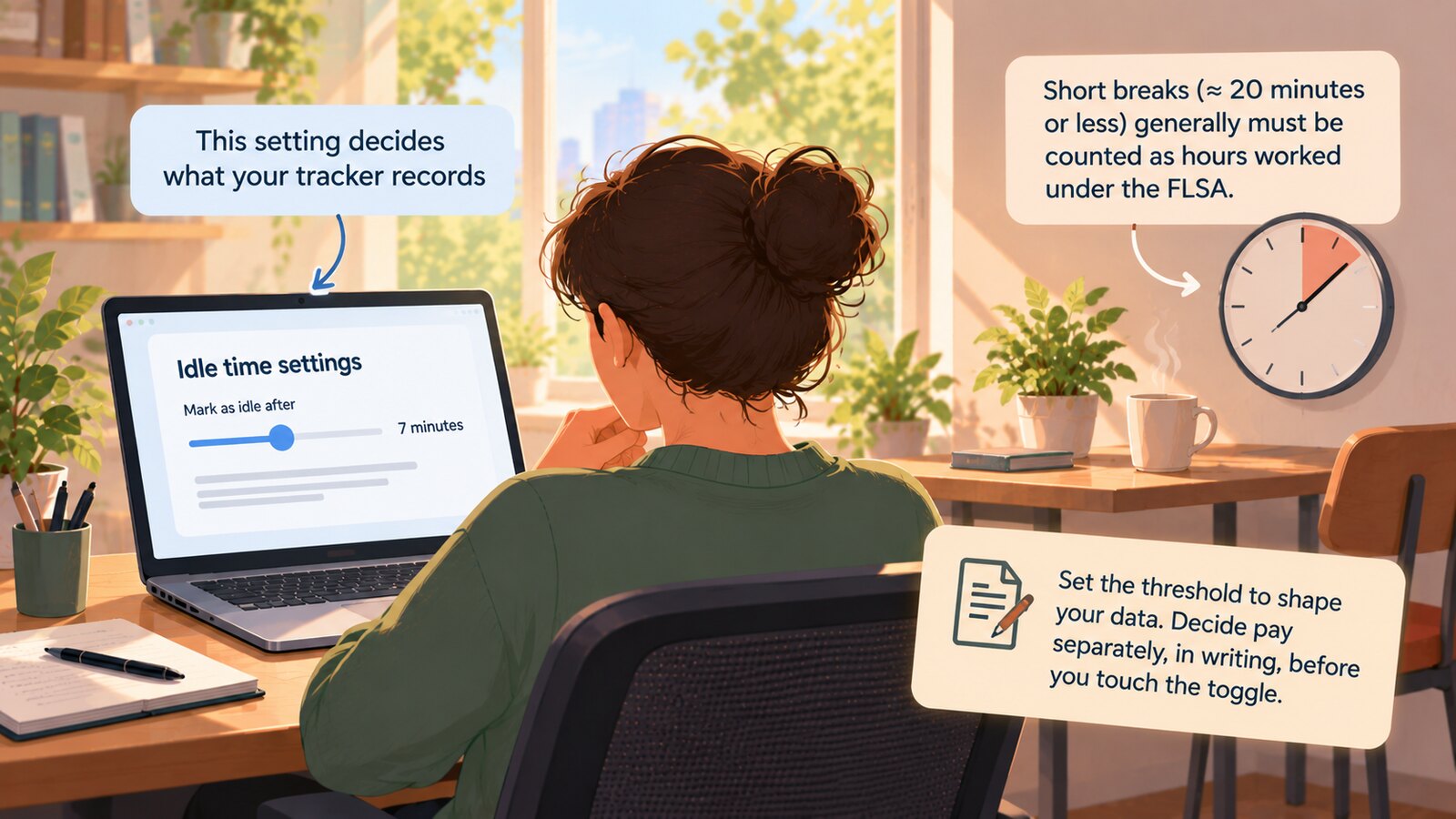
Seven minutes is a defensible idle timeout default for most knowledge work. But the setting decides only what your tracker records, not what you owe — and what follows is general information about US federal law, not legal advice, since state rules and non-US rules differ. Under the Fair Labor Standards Act, short rest breaks of roughly twenty minutes or less generally must be counted as hours worked no matter what your timer did. Set the threshold to shape your data; decide pay separately, in writing, before you touch the toggle.
What an idle timeout actually is
Almost every time tracker with screenshots watches for keyboard and mouse input. When input stops for longer than a configured window, the stretch is marked idle. That is the whole mechanism, and it is worth being blunt about how crude it is: the tracker is not detecting not working. It is detecting not typing or moving a mouse. The entire art of configuring this setting is managing the gap between those two things. If you are unclear on what your own tool observes, start with how tracking works end to end — the same input signal drives both idle detection and the activity percentage on your reports.
There are two settings, and vendors often bury the second. The first is the detection window — how long silence must last before the stretch counts as idle. Time Doctor calls this Timeout After, with a default of 15 minutes, a minimum of 3 minutes and a maximum of 6 hours. Hubstaff's equivalent offers 5, 10 or 20 minutes, a custom value, or never.
The second setting decides what happens to the detected time. Hubstaff's Keep Idle Time option can be set to Prompt (the worker gets a dialog and chooses), Always (idle time is kept automatically) or Never (idle time is discarded). Notably, Prompt is the only option on lower plans; Always and Never require Premium or Desk tiers. So the smallest teams, least likely to have an employment lawyer on retainer, are the ones handed a dialog box that asks an hourly worker to decide whether their own time counts. Which controls sit behind which tier is a real product difference; our SCREENish vs Hubstaff comparison lays out where the two plan structures diverge.
Set aside which number is right. The structural problem is that both get configured in one sitting by someone thinking about data quality — and the second is a payroll decision.
Why seven minutes, defended
 Learn how SCREENish saves you money
Time tracking with screenshots, honest reports and hands-off payroll. Free to try — no credit card.
Start free →
Learn how SCREENish saves you money
Time tracking with screenshots, honest reports and hands-off payroll. Free to try — no credit card.
Start free →
Most published guidance gives a range and no reasoning. Here is the reasoning.
Five minutes is too short, and the vendors' own docs prove it
Five minutes is the most common aggressive default, and it is wrong for most knowledge work for three reasons.
First, meetings. Someone on a forty-minute video call who is listening, not presenting, may not touch the keyboard once. Under a five-minute rule you have generated eight idle blocks for a person doing exactly their job. This is common enough that Time Doctor ships a dedicated setting, Don't Time Out on Calls, whose documentation notes the desktop apps "may automatically time out after inactivity, which can disrupt video calls." A threshold that requires a special exemption to survive an ordinary Tuesday is a badly chosen threshold.
Second, reading. Reviewing a contract, studying a design, working through a specification — none produce input events at any reliable rate. Any role whose value comes from thinking rather than keystrokes gets systematically mislabeled by a short window.
Third, and most importantly, five minutes sits inside the range that federal regulation treats as paid rest. 29 CFR 785.18 says that "rest periods of short duration, running from 5 minutes to about 20 minutes, are common in industry" and that they "must be counted as hours worked." A five-minute idle rule starts flagging at the exact moment the regulation starts protecting. That does not make the setting illegal — the setting records, it does not pay — but it guarantees your idle data and your payroll obligation will disagree constantly.
Fifteen minutes and up makes the data meaningless
The opposite failure is quieter. At a fifteen- or twenty-minute threshold, a worker who alternates five minutes of typing with twelve minutes of nothing, all day, never registers as idle once. The signal degrades until it only catches someone who walked away for a quarter of an hour — which you would have noticed anyway. If your idle report reads near zero across a whole team, that is not a healthy team — that is a threshold set too high to detect anything.
The case for seven
Seven minutes clears the two-to-five-minute noise floor of ordinary work rhythm — reading a paragraph, thinking through a problem, taking a call — while still landing inside the window where a real break is underway. It is long enough that a flagged block is a genuine event rather than a rounding artifact, and short enough that a habitually half-idle day still shows up in the aggregate.
It also has a property that matters more than precision: 5 or 15 reads as whatever came out of the box, while 7 reads as a decision someone made — which is exactly the conversation you want with a team member who asks about it.
Adjust from there by role, not by mood:
| Role pattern | Suggested window | Why |
|---|---|---|
| Data entry, support ticket queues, transcription | 5–7 minutes | Continuous input is genuinely expected; silence is informative |
| General knowledge work, marketing, admin, junior engineering | 7 minutes | Balances noise rejection against signal retention |
| Design, senior engineering, analysis, legal review | 10–12 minutes | Long input-free thinking and reading stretches are normal output |
| Roles that are mostly meetings | 15 minutes, or exempt | Input rate is near zero by design; the metric measures nothing useful |
| Field, on-call or supervisory work | Reconsider idle tracking entirely | Waiting may itself be the compensable job |
The part vendor blogs will not touch: do you have to pay for it?
Search for idle timeout advice and you will find dozens of articles giving thresholds by role. Almost none will tell you whether the deducted time is still owed. That silence marks the boundary between a software question and a wage-and-hour question, and software companies prefer not to stand on the far side of it.
So, carefully, and with the obvious caveat that this is general information about US federal law rather than legal advice for your situation — state law can be stricter than the FLSA, as California is below, and rules outside the US differ entirely: your tracker's idle setting has no authority over what you owe. Under the FLSA the question is whether the employee was working, and inactivity is not the test.
Engaged to wait vs. waiting to be engaged
The governing distinction is old and clear. 29 CFR 785.14 frames it as whether the facts "show that the employee was engaged to wait or they may show that he waited to be engaged." DOL Fact Sheet #22 gives the classic examples: "a secretary who reads a book while waiting for dictation or a fireman who plays checkers while waiting for an alarm is working during such periods of inactivity. These employees have been 'engaged to wait.'"
Read that against an idle timeout and the collision is immediate. A secretary reading a book generates zero keyboard input. Every tracker on the market flags her. The Department of Labor says she is working. 29 CFR 785.15 makes the standard explicit: waiting is work time when "the employee is unable to use the time effectively for his own purposes. It belongs to and is controlled by the employer."
The opposite case is real too. 29 CFR 785.16 provides that periods when an employee is "completely relieved from duty and which are long enough to enable him to use the time effectively for his own purposes are not hours worked" — but it attaches a condition employers routinely miss. The employee must be "definitely told in advance that he may leave the job and that he will not have to commence work until a definitely specified hour has arrived." An idle prompt appearing on screen after the fact is not advance notice of release from duty — it is the opposite, a question asked too late.
Short breaks are paid
This is the rule that most directly contradicts casual idle deduction. Fact Sheet #22 states that rest periods "usually 20 minutes or less" are "customarily paid for as working time" and that "these short periods must be counted as hours worked." A worker who steps away for eight minutes to get coffee has, under federal law, taken a paid rest break. If your tracker silently removed those eight minutes from the timesheet and you paid the reduced total, you underpaid.
There is a genuine exception, and it is narrow. Fact Sheet #22 continues: "unauthorized extensions of authorized work breaks need not be counted as hours worked when the employer has expressly and unambiguously communicated to the employee that the authorized break may only last for a specific length of time, that any extension of the break is contrary to the employer's rules, and any extension of the break will be punished." Every clause is load-bearing: you need a stated break length, a stated rule against exceeding it, and a stated consequence, all communicated in advance. If you have that, idle data becomes genuinely useful evidence. If you do not, idle data is just data.
The de minimis limit, and where it does not apply
29 CFR 785.47 allows that "insubstantial or insignificant periods of time beyond the scheduled working hours, which cannot as a practical administrative matter be precisely recorded for payroll purposes, may be disregarded." Courts applying this weigh three factors, set out in Lindow v. United States, 738 F.2d 1057 (9th Cir. 1984): the practical administrative difficulty of recording the time, the aggregate amount of compensable time, and the regularity of the additional work.
Two things follow that are inconvenient for anyone leaning on this. First, the doctrine concerns time that is hard to record — but your tracker records idle time to the second and puts it on a report, so the act of measuring it destroys the administrative-difficulty argument. Second, a few minutes shaved daily, every day, is precisely the accumulation pattern courts scrutinize. Nor is the doctrine universal. In Troester v. Starbucks Corp. (Cal. 2018), the California Supreme Court declined to apply the federal de minimis rule to the state wage claims before it, in a case involving four to ten minutes of regular daily off-the-clock work.
Boot-up, shutdown and the start of the day
A related trap sits at the edges of the shift. In Cadena v. Customer Connexx LLC, call-center workers argued that booting up and shutting down their computers was compensable overtime. The Ninth Circuit had already held that boot-up time integral to the job can be compensable; in its July 10, 2024 opinion the panel confirmed the de minimis doctrine still applies to such claims, but found triable issues remained as to whether this time was de minimis and reversed summary judgment for the employer. Do not assume the answer either way.
The configuration point is simple: if your app starts tracking only after the machine is up and the worker logged in, your timesheet begins after some work has already happened — a gap that runs in the direction that costs you.
What to do instead of deducting silently
The useful reframe: idle detection is an evidence tool, not a pay rule. Configure it to produce accurate observations, then apply a written policy to them.
- Set the detection window per role, using the table above, and write down why. A threshold you can explain survives a disagreement; one you inherited does not.
- Do not auto-discard. If your tool offers a "never keep idle time" mode, understand that you have configured automatic wage deduction and put the discretion nowhere. Keep the time and flag it.
- Write a break policy first. State the number and length of paid breaks, state that longer absences should be clocked out, state what happens if they are not. Without this, the exception in Fact Sheet #22 is unavailable to you.
- Review, do not deduct. Treat a flagged block as a prompt for a thirty-second conversation, not as an automatic subtraction. Most will have ordinary explanations.
- Exempt the roles where waiting is the job. If someone is paid to be available, idle time is the deliverable.
"Who is actually going to review a thousand screenshots?"
The advice above collapses on contact with reality, and this is the complaint we hear most: a five-person team on ten-minute screenshot intervals generates roughly a thousand images a week. Nobody reviews a thousand images. So the review never happens, the setting defaults to something automatic, and the policy exists only on paper.
This is what screenshot auto-approval is actually for. It is not a monitoring feature. It is triage — a rule that pre-sorts the pile so a human looks at the small anomalous fraction rather than the whole week. In SCREENish, one available mode auto-approves ordinary captures as they arrive and holds back those taken during idle stretches over seven minutes. This capability is not unusual; most established trackers offer some version of approval filtering, and our guide to time tracking software with screenshots compares how several handle it. We defend the reasoning behind the number, not the feature.
The design consequence matters for pay. When idle blocks land in a queue rather than in a deduction, a person decides, a record exists of who decided, and the FLSA analysis happens with someone who knows whether that worker was on a call, reading a contract, or gone. Automatic deduction moves that decision into a config file, where nobody can be asked about it later.
Configuring this in practice
Whatever tool you use, two questions matter most before you commit to a threshold: whether the window can be set per role, and whether flagged time stays visible after a decision or simply disappears. Products diverge more on these than their feature lists suggest — our SCREENish vs Monitask comparison works through one such split.
That last question is the one people regret skipping. Deleted time tends to be gone for good in most trackers, and the same is true in SCREENish — delete a screenshot and the tracked time attached to it goes with it. What differs is that SCREENish leaves a visible marker in the worklog showing the slot, the activity counts, and who deleted it and when, so a wiped stretch still reads as a wiped stretch rather than as an absence. Our piece on how screenshot deletion rules work across time trackers covers that trade-off in detail. SCREENish is flat $5 per seat per month with no feature tiers, so nothing described here sits behind an upgrade — see pricing.
The short version
Set seven minutes for general knowledge work, longer for reading- and meeting-heavy roles, shorter only where continuous input genuinely is the job. Do not let the tool discard time on its own. Write your break policy first, because federal law treats short breaks as paid and the exception requires advance, unambiguous communication you must actually have made. Route flagged time into a queue a person can realistically work through — a policy nobody has time to execute is the same as no policy.
The setting controls your data. You control your payroll. Keeping those two facts distinct is most of the job.