
How to prevent buddy punching when there is no time clock
Buddy punching is one name for two different problems. On a factory floor or a retail shop it means a colleague swipes a badge or taps a PIN for someone who is late. On a remote team it means the hours are logged under an account that somebody else is sitting behind, and no badge is involved at all.
Almost every article about preventing buddy punching answers the first problem. The fix on offer is a shared tablet by the door running facial recognition, and it is a good fix. It is also useless if your team never walks through a door. This page is about the second problem, and about what actually replaces the clock-in moment when there is no clock.
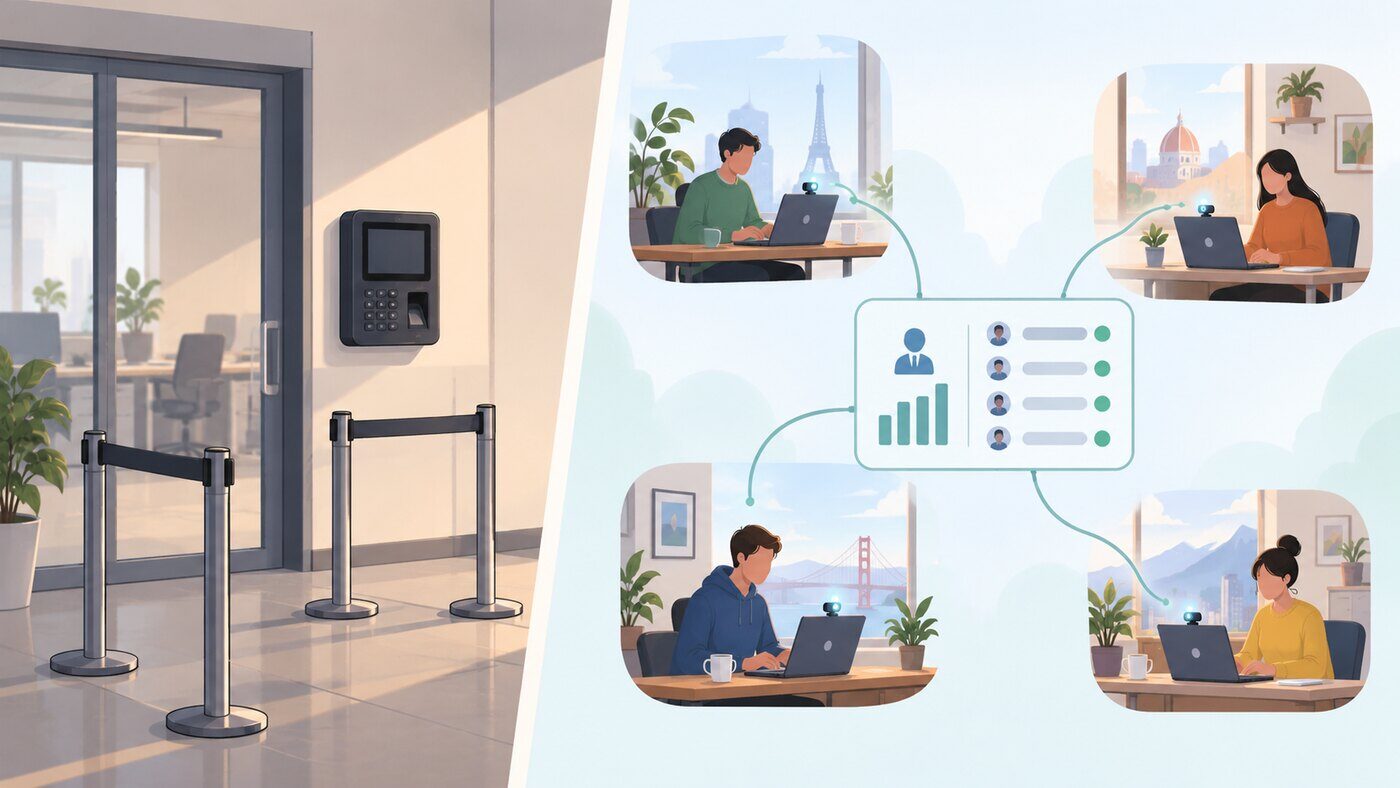
Two problems, one name
| On-site shift work | Remote or hybrid work | |
|---|---|---|
| What gets passed around | A badge, a PIN, or a friend who is already at the terminal | A login and a password, shared once and used for months |
| When it happens | At one moment, the start of a shift | At any point during the tracked day, and it can change halfway through |
| The usual fix | Facial recognition on a shared kiosk, so every person passes one camera | Nothing that checks only at clock-in is enough |
| Why the fix works | There is a single device everyone has to use | There is no shared device to put a camera on |
| What is left | Hardware, or a tablet app | Verification during the work itself, on the computer already doing the work |
Why the kiosk answer does not transfer
A facial recognition time clock works because of a physical constraint, not because of the camera. Everyone has to be in one place at one time, so one camera can see all of them. Take away the shared entrance and the whole design falls apart. You cannot ask twelve people in six cities to file past a tablet.
Kiosk products are built around that constraint and they are honest about it. Jibble, for instance, is very good at exactly this, with a shared tablet, anti-spoofing and geofencing, and if you run shifts at a site it is a better answer than anything on this page. We compare the two properly rather than pretending otherwise.
The second reason the answer does not transfer is timing. A clock-in check verifies one second of an eight hour day. On site that is usually enough, because the person then stays where their colleagues can see them. Remotely there is nobody watching after that second, which is where account sharing and proxy work live.
What replaces clock-in: verification during the session
SCREENish checks identity while the work is being tracked, not at the moment it starts. The employee submits a reference photo, the employer approves it, and from then on the desktop app compares the person at the keyboard against that approved photo during tracked sessions. The result lands in the work log as a match rate per hour, next to the screenshots and activity levels the manager already reviews.
That changes what the number means. Instead of a yes or no at one timestamp, you get a rate across the day, so an account handed over after lunch shows up as clearly as one handed over at the start. Tracked hours are tied to a face you approved rather than to a password anyone can forward. The mechanics are described in full on the face recognition time tracking page, and the wider identity question in our guide to remote employee identity verification.
The minimum match rate is yours to set, anywhere from 50 to 100 percent, per employee. Raising it does not make the check smarter, it makes it fussier: a dim room, new glasses or a hat will start failing honest people. A low hourly match rate is a reason to ask a question, not a verdict. Cameras and lighting fail far more often than employees cheat.
Consent, because a face is personal data
A kiosk in a warehouse and a webcam in somebody's home are not the same thing legally, and if you employ people in the EU the difference matters. Face verification in SCREENish stays off until the employee accepts a consent request from their own account. The employer cannot switch it on for them.
- Consent is per employer. Someone tracked by two companies decides separately for each, and the photo is never shared between them.
- It can be withdrawn at any time from the employee's own settings.
- Every answer is dated and kept, so you have documentation rather than a claim.
This is also the part that makes the feature survivable as a policy. A verification system employees agreed to in writing is a different conversation from one that appeared on their machine overnight.
A failed check is not an accusation
Any identity check that cannot tell a broken webcam from evasion will eventually accuse the wrong person. SCREENish separates the two. When the camera gives no usable picture, the work log shows how many checks were affected and when, with the ordinary explanations listed: another application holding the camera, a closed lid, a disconnected device. When the camera turns on but sends no video, the employee gets an on-screen prompt to restart it, at most once every 30 minutes, and the manager sees a camera malfunction notice rather than a gap. Checks resume on their own once the camera works.
What this does not do
Worth stating plainly, because it decides whether you should read further:
- There is no kiosk mode. No shared tablet, no terminal, no wall mount. Verification happens on each person's own computer.
- There is no clock-in camera for a site. If you need people to check in at an entrance, this is the wrong tool and Jibble or a similar kiosk app is the right one.
- It is not built for hard hats and masks. Industrial verification through PPE is a separate product category.
- There is no iOS app. The desktop app runs on Windows, Mac and Linux, and the Android app covers GPS.
Which one do you need
A kiosk, if your team clocks in at a site, shares one device, works shifts, and the fraud you are worried about is somebody swiping a badge for a friend.
Session verification, if your team works from their own computers, the account is the only credential, and the question you actually want answered is whether the person you hired is the person doing the work today.
Mixed teams exist and so do both answers. What does not exist is a kiosk that solves the remote half.
 Tie the hours to a person, not a password
Screenshots, work logs and consent-based face verification in one desktop app, at a flat $5.00 per employee. Free to try, no credit card.
Start free →
Tie the hours to a person, not a password
Screenshots, work logs and consent-based face verification in one desktop app, at a flat $5.00 per employee. Free to try, no credit card.
Start free →
Frequently asked questions
How do you stop buddy punching without a time clock?
By verifying identity during the work rather than at clock-in. SCREENish compares the person at the keyboard against a photo the employer approved in advance, throughout tracked sessions, and reports a match rate per hour in the work log. Hours are tied to an approved face instead of to a password that can be passed on.
Does face recognition prevent buddy punching on a remote team?
Only if it runs during the session. Face recognition at clock-in verifies one moment of the day, which is enough on site because colleagues see the person afterwards. Remotely nobody does, so an account can change hands after the check. Verification spread across the tracked hours is what closes that gap.
Do I need a tablet or a biometric terminal?
No. SCREENish uses the webcam already on each employee's computer and is enabled per employee as a setting. There is no hardware to buy or mount. If you do want a shared tablet at an entrance, you want a kiosk product such as Jibble instead.
Can an employee refuse to be verified?
Yes. The feature cannot be switched on until the employee accepts a consent request from their own account, consent is given separately for each employer, and it can be withdrawn at any time. Every answer is dated and kept.
What happens if the webcam fails during a shift?
The work log reports how many checks were affected and when, rather than counting the gap against the employee. If the camera turned on but sent no video, a malfunction notice appears and the employee is prompted to restart it. Checks resume automatically once it works.
Further reading: GDPR-compliant employee monitoring: a practical checklist