
Screenshot Blurring in Time Tracking: Keeping Passwords and Card Numbers Out of Your Monitoring Records
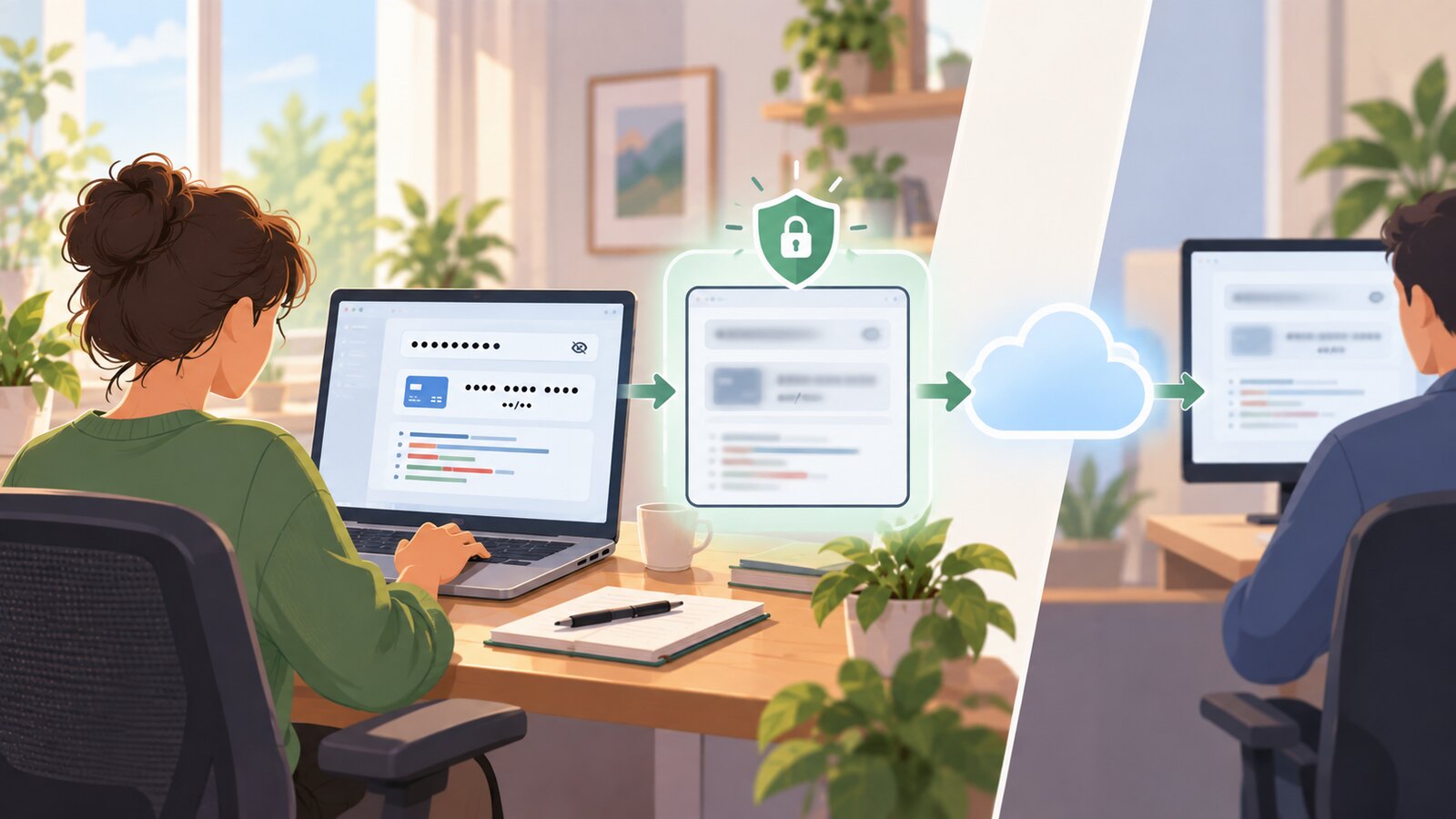
Sooner or later, a screenshot-based time tracker photographs something nobody wanted kept: a password manager unlocked for five seconds, a card number typed at checkout, a customer's file open in the CRM, a configuration file full of API keys. Screenshot blurring is the fix, and where it runs matters more than how it looks: the tracking app redacts the image on the employee's own computer, before it is uploaded, so every copy that exists afterwards — on the server, in a manager's browser, in an export on somebody's laptop — is already unreadable where it counts. Done properly it comes in two modes: blur the whole screen so no text survives while the shape of the work stays recognisable, or detect the sensitive fields and blur only those.
A screenshot is a file, and files spread
It is tempting to frame screenshot risk as "what if the cloud gets hacked," but that is the smallest part of it. A work screenshot is an ordinary image file, and it goes where files go: server storage and backups, the browser cache of every manager who reviews it, downloads and exports, the occasional email attachment when someone asks "can you send me that day's log?" Each copy is one lost laptop or one over-shared folder away from being someone else's reading material. IBM's Cost of a Data Breach research puts the global average breach at millions of dollars per incident, and a password captured in a readable screenshot is exactly the kind of credential that never appears in any access review, because officially it does not exist.
The capture is almost never malicious and almost never the employee's fault. Someone checks their bank at lunch on the tracked machine. A support agent screen-shares a customer record at the moment the timer fires. A developer opens an environment file. The tracker cannot tell payday from checkout — it photographs whatever is on screen, on schedule, which is its job. If the image leaves the machine readable, the sensitive data in it has already been collected; everything after that is damage control.
Why "just delete it afterwards" is the wrong tool
 Learn how SCREENish saves you money
Time tracking with screenshots, honest reports and hands-off payroll. Free to try — no credit card.
Start free →
Learn how SCREENish saves you money
Time tracking with screenshots, honest reports and hands-off payroll. Free to try — no credit card.
Start free →
Most screenshot trackers answer this problem with deletion: the employee spots the bad screenshot in their work log and removes it. That helps, but notice what it requires — the employee has to be watching their own log, has to recognise the problem, and has to act, all after a readable copy has already reached the server and possibly a reviewer's screen. Deletion is also an expensive act in most tools: as we documented in our comparison of deletion rules across trackers, deleting a screenshot usually deletes the tracked time attached to it, which turns a privacy reflex into a timesheet decision.
Redaction has to happen before upload, or it happens too late. That is the entire design argument for blurring at capture: the un-redacted image never exists anywhere except, for a moment, in memory on the machine that took it.
Whole-screen blur: the safe floor
The blunt mode blurs the entire screenshot just enough that no text is readable. What survives is the layout: which application is open, roughly what kind of activity is happening, the rhythm of a working day. What does not survive is content — not the document, not the chat, not the password. For verification purposes that is often exactly the right trade. A manager looking at a whole-blurred log can still answer "was this person working in the tools they said they were working in?" without being able to read a word of what the person wrote.
Whole-screen blur has two properties that make it the reference point for everything else. It cannot leak — there is no detection step to get wrong, so there is nothing to miss. And it costs almost nothing to compute, so it works on any machine. Any smarter mode should be able to fall back to it, because falling back to it is always safe.
Smart blur: AI redaction on the device
The precise mode reads the screen — text recognition plus detectors for structured data, plus a small language model for the unstructured kind — and blurs only what it finds sensitive: passwords, card and IBAN numbers, email and physical addresses, phone numbers, personal names. The rest of the screenshot stays readable. For teams that actually review screenshot content, this is the difference between a privacy feature they can live with and one they quietly turn off.
Two honest caveats. First, this runs on the employee's machine, which is a feature: any cloud-side redaction service, however good, means the readable image travelled to a server first. Second, detection quality depends on what your team's screens actually look like. Ordinary business applications in a common language are the easy case; unusual interfaces, dense technical content and uncommon languages are harder, and no vendor should promise you a guaranteed catch rate. If missing even one field is unacceptable for your work, the whole-screen mode is the safer choice — precision is a convenience, not a guarantee.
Fail closed: what a trustworthy smart mode does when it cannot be sure
The most important question to ask about any AI redaction feature is not how accurate the model is — it is what happens when the model cannot run or cannot be trusted. The defensible answer is to fail closed: when in doubt, blur everything. In SCREENish, a project set to Smart Blur ships a whole-screen blur instead whenever any of these is true:
- The screen looks like a configuration or source-code file. When many credential-style labels appear at once — passwords, API keys, tokens, connection strings — precise redaction is at its hardest exactly where a miss is most expensive, so the whole screen is blurred.
- The screen is extremely text-dense. Past roughly three thousand recognised words, the name-detection pass cannot reliably cover everything, so rather than ship a screenshot with one name left visible, the app blurs it all.
- The computer is low on memory. Smart redaction needs working memory; under memory pressure the app skips the heavy pass and takes the cheap, safe path.
- Redaction is taking too long. If analysing a screenshot would take longer than about two minutes on a slow machine, a whole-screen blur ships so time tracking never falls behind.
- The text cannot be read at all. If recognition is not ready or errors out for any reason, the fallback is total blur — never an unredacted upload.
Notice the shape of every rule: degraded conditions produce more blur, never less. With blur enabled, an un-blurred screenshot is never uploaded. That is also why publishing these thresholds costs nothing — there is no way to game them that does not simply make your screen more private.
The compliance read: minimisation at the point of collection
Article 5(1)(c) of the GDPR requires personal data to be "adequate, relevant and limited to what is necessary" — data minimisation. A readable screenshot of a colleague's bank balance fails that test the moment it is collected, no matter how well it is stored afterwards. Blurring at capture is minimisation applied at the only point where it fully works: the excess data is never collected in readable form at all. The UK regulator's guidance on monitoring workers asks employers to keep monitoring proportionate and to remember that people working from home have heightened privacy expectations — a home worker's screen is far more likely to briefly show a private life. If you are documenting your setup, our GDPR employee monitoring checklist covers the paperwork side; none of this is legal advice, but a screenshot policy that collects less readable personal data is an easier policy to defend.
How this works in SCREENish
Blurring is set per project. In PROJECTS → Advanced Options, while screenshots are enabled, a Privacy & Security panel offers three modes: No Privacy (screenshots exactly as taken), Blur Whole Screen, and Smart Blur (AI). The choice travels to the desktop app and is applied on the employee's computer at the moment each screenshot is taken. Smart Blur is memory-intensive, and on slower machines it falls back to whole-screen blur automatically — the fail-closed rules above. One current limitation, stated plainly: screenshot blurring requires the latest version of the tracking app. Employees running an older version keep uploading unblurred screenshots until they update, so roll the update out to the team before you rely on the setting.
The bottom line
Screenshots earn their place in time tracking by verifying that claimed work happened. They do not need to archive your team's passwords, your customers' card numbers or anyone's bank balance to do that job. Whole-screen blur is the safe default that keeps activity verifiable and text unreadable; smart blur buys back readability where the workload cooperates; and the property worth demanding from any vendor is the quiet one underneath both: redaction on the device, before upload, with every failure mode ending in more blur rather than less. A monitoring record that never contained the secret is the only kind that cannot leak it.