
Can a photo fool face recognition time tracking? What liveness detection catches, and what it does not
Any face check that runs on a webcam invites the same question, from the employer who is about to rely on it and from the employee who is about to be checked by it: what stops someone from holding up a photo? It is the right question, and the honest answer has three parts. Some tricks are cheap and fail. Some are harder and are flagged rather than failed. One is genuinely difficult for every webcam-based product, ours included, and you should know which one before you rely on any of them.
This page describes the liveness detection that runs with every face check in SCREENish: what it catches, what it only flags, and what it cannot see. The face check itself is described on the face recognition time tracking page, and the reason a remote team needs the check during the session rather than at clock-in is on how to prevent buddy punching on a remote team.
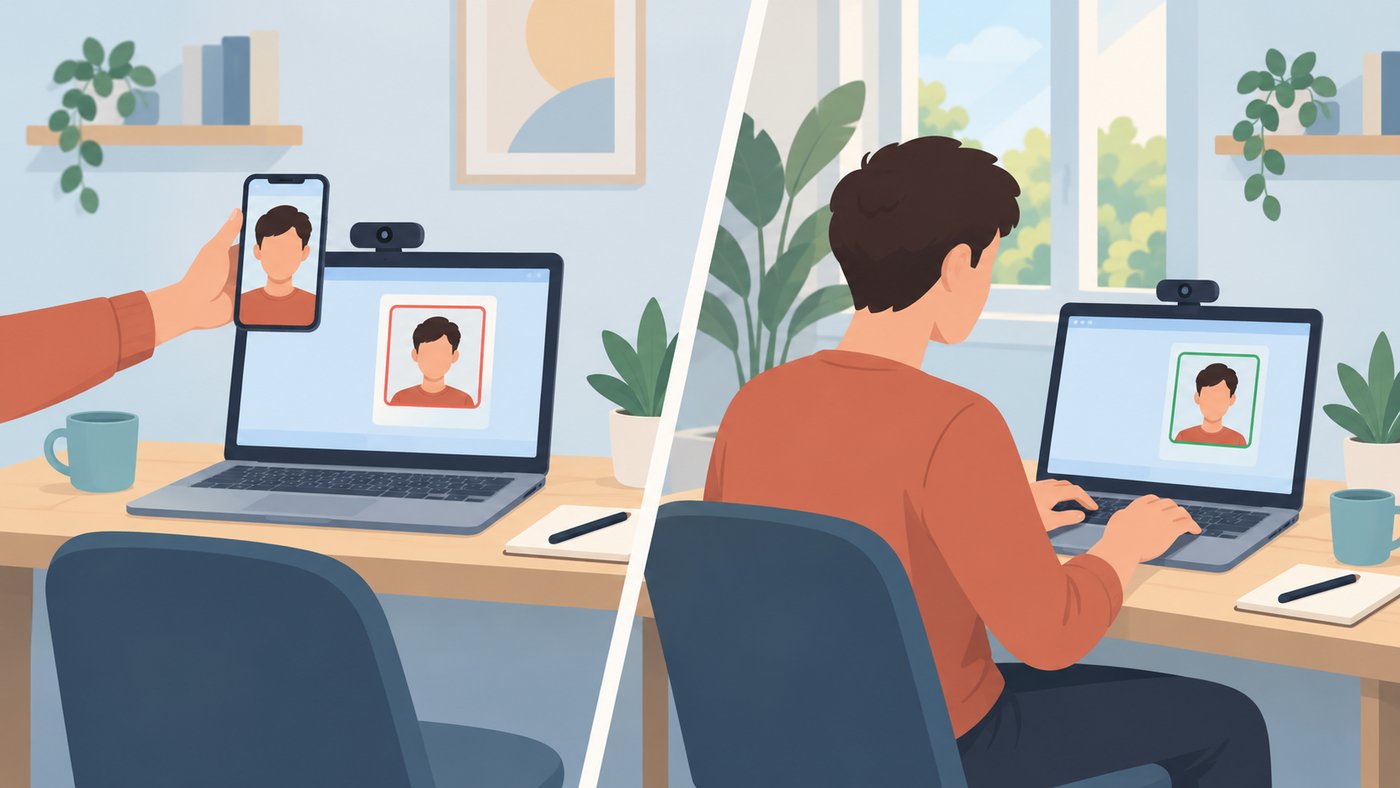
Three ways to fool a webcam, and what happens to each
| The trick | What the camera sees | What SCREENish does |
|---|---|---|
| A photo held up to the webcam, printed or on a phone | Texture and light that belong to paper or a screen, not to a face in a room | Fails the liveness test. Counts as a failed check in the hourly match rate. |
| A video of the person played on a phone or a second monitor in front of the webcam | A screen filmed by a camera: re-capture artefacts, flat lighting | Fails the liveness test. A sustained run of these raises a Spoof suspected notice in the work log. |
| A recording fed straight into the computer through a virtual camera driver | Clean frames, because nothing was re-captured | The face check can pass. A looping clip is flagged when the frames repeat at a fixed rhythm. The camera device is reported as virtual, as information only. |
How the liveness test works
A face check in SCREENish is not one frame. While the camera is open, the app takes several frames a short interval apart and asks two questions of each: is this the approved face, and is this a live face in front of the camera rather than a reproduction of one. The second question is answered by an anti-spoofing model that scores each frame. The check needs a few scored frames before it reaches a verdict, so a single blurred frame decides nothing.
A check counts as a match only when both answers are yes. A frame that shows the right face but fails the liveness test is a failed check, exactly as a non-matching face would be, and it lowers the hourly match rate in the same way. There is no separate liveness score for you to interpret. The match rate you already read in the work log includes it.
The frames of a failed check are kept, encrypted, on the employee's computer and go into the hourly composite you can open from the work log, so you can see for yourself what the camera saw. A check that passes keeps no photograph.
The test is passive. Nobody is asked to blink, turn their head or hold still. The employee sits and works, and the check happens in the background as it always did.
When the work log says Spoof suspected
One failed check means nothing, and the app treats it that way. The notice appears only when a face was present and the frames kept failing the liveness test across a sustained run of consecutive checks, the pattern a photo or a phone screen in front of the webcam produces and an empty chair does not. A covered lens, an absent employee or a dead camera never raise it. Those have their own notices, described in the camera notices guide.
The notice is a card on the day in WORK LOGS: how many reports arrived, between which times, the longest streak of suspect checks, and the camera device when it is a virtual one. The condition clears on its own the moment a live check verifies, and returns if the pattern resumes, so you see it in every hour it was happening rather than once.
What the notice is not is a verdict. It goes to a person, the same way an Activity Review flag does. Open the composite, look at the frames, and ask. Honest explanations exist and are covered below.
Looped recordings and virtual cameras
The harder trick skips the webcam altogether. A recording of the employee is fed into the computer through a virtual camera driver, so the frames are clean and the liveness test sees a live-looking face. SCREENish handles this in two ways, and it is worth being exact about both.
First, a recording of practical length has to loop. When the same frames come back at a fixed rhythm across many checks, that pattern is flagged in the work log, separately from the liveness notice, because the face check itself was passing.
Second, the app reports which kind of camera device delivered the frames, and a virtual camera is shown as such on the notice. This is information, not an accusation. Background-blur tools, conferencing software and phone-as-webcam apps all present themselves as virtual cameras, and a great many honest employees use one. A virtual camera on its own is never treated as cheating.
What this does not do
Worth stating plainly, because it decides how much weight to put on the check:
- A long, non-repeating recording through a virtual camera driver is the hard case for every webcam-based check, including this one. If it does not loop and the frames are clean, the face check can pass. The device flag and the hourly composite are what you have, and a review of both next to the screenshots and activity for the same hours is the honest answer, not a promise that software alone catches it.
- It is not a depth or infrared sensor. Phone face unlock uses dedicated hardware. A laptop webcam gives one flat image, and the liveness test works with that.
- It is not identity proofing. Liveness detection says a live person is present. The face match says it is the approved face. Neither checks a passport, and neither is a defence against a real-time deepfake feed, which we say just as plainly in our piece on proxy workers.
- There is no kiosk. The check runs on each person's own computer during tracked work. For a shared tablet at an entrance you want a kiosk product such as Jibble.
Honest people fail frames too
Liveness tests look at texture and light, and some ordinary setups produce texture and light that resemble a reproduction. Strong backlight from a window. A webcam running through heavy smoothing or beautify filters. A very low-quality camera at night. A phone used as a webcam through an app that re-encodes the picture. Each of these can fail a frame now and then.
This is why a single failure changes nothing, why the notice needs a sustained streak, and why the minimum match rate is a number to set with care rather than push to 100 percent. If an employee's rate drops and the composite shows their own face in their own room, the fix is almost always the lighting or the filter, and the conversation is a short one. The same principle runs through the whole feature: a low rate is a prompt to ask, not a conclusion.
Consent, and what is kept
Liveness detection is part of the face check, not a separate feature, so the same consent covers it. The employee grants consent per employer from their own account and can withdraw it at any time, and the feature stays off until they do. The consent text names the defence against replayed photos and videos and against a fake camera feed, so nobody discovers it afterwards.
What it stores is small. A check that passes keeps no photograph. The frames of failed checks go into the hourly composite the employer can review, and that composite is deleted after 45 days. The suspicion markers themselves are numbers and timestamps, not images, kept for up to a year with the rest of the report row. Liveness detection produces no biometric template of its own. The details are in the Data Processing Agreement.
 A face check that a photo cannot pass
Screenshots, work logs and consent-based face verification with liveness detection in one desktop app, at a flat $5.00 per employee. Free to try, no credit card.
Start free →
A face check that a photo cannot pass
Screenshots, work logs and consent-based face verification with liveness detection in one desktop app, at a flat $5.00 per employee. Free to try, no credit card.
Start free →
Frequently asked questions
Can a photo fool face recognition time tracking?
Not in SCREENish. Every face check runs liveness detection on several frames, and a printed or on-screen photo held up to the webcam fails that test. The check counts as failed in the hourly match rate even though the face in the photo matches.
What about a video of the employee?
A video played on a phone or a monitor in front of the webcam fails the same way, and a sustained run of such checks raises a Spoof suspected notice in the work log. A recording injected through a virtual camera driver is the hard case: a looping clip is flagged when its frames repeat at a fixed rhythm and the camera device is reported as virtual, but a long, clean, non-repeating recording can pass the face check.
What does the Spoof suspected notice mean?
That a face was present and the frames kept failing the liveness test across a sustained streak of consecutive checks. The card shows how many reports arrived, between which times, the longest streak and the camera device. It is a prompt for a person to open the composite and ask, not a verdict, and it clears on its own once live checks verify again.
Will a virtual camera or background blur get an employee flagged?
No. A virtual camera is reported on the notice as information, because background-blur tools and conferencing software present themselves that way, and it is never treated as cheating by itself. Heavy filters can occasionally fail a frame, and a single failed frame changes nothing.
Does the employee have to do anything, like turn their head?
No. The liveness test is passive. There are no prompts and no gestures; the employee sits and works as usual, and the check happens in the background during tracked sessions.
Further reading: Proxy workers: how to tell if someone else is doing your remote employee's job