Time Tracking with Screenshots Logo
  • How it works
  • Prices & FAQ
  • Blog
  • Sign Up
  • Log In
  • Contact Us
  • Try SCREENish for free
  1. SCREENish
  2. How it works
  3. Approvals: Applying Your Rule to Past Screenshots

Approvals: Applying Your Rule to Past Screenshots

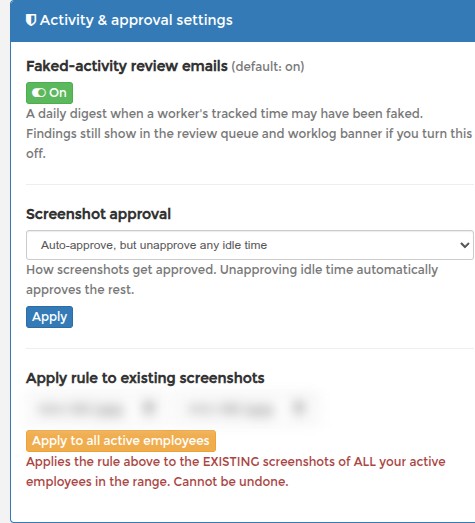
Your approval rule only affects screenshots that arrive after you save it. To apply it to screenshots you already have, go to EDIT PROFILE > Activity & approval settings > Apply rule to existing screenshots.

Choose a start and end date, then press Apply to all active employees. SCREENish walks the existing screenshots of every active employee in that range and applies the rule you saved above.

This cannot be undone. Try a single day first and check the result in WORK LOGS before you run a longer range. To redo one person only, with a different idle choice, use Approvals: Bulk Approving One Worker instead.
See it in your own work logs

SCREENish is free to try — no credit card required.

Start free

← All guides

  • How it works
  • Prices & FAQ
  • Blog
  • Sign Up
  • Log In
  • Contact Us
  • Try SCREENish for free
Random Blog Posts
  • Verification Is The Ultimate Form Of Trust
  • A Guide To Teamwork Between Outsourced Professionals
  • Key Principles Of Risk Management For Future And Ongoing Projects
  • Key Principles To Creating Project Strategies
  • Be the one in control of your tasks
  • Most commonly hired type of outsourced professionals
  • How to increase the productivity at the workplace
  • Key principles to effective management of outsourced projects
  • Few tips on how to decrease the costs of your office
  • Project and process time management
© SCREENish 2026 All right reserved. By SCREENish.com | Terms of Service | Privacy Policy & Cookies