Time Tracking with Screenshots Logo
  • How it works
  • Prices & FAQ
  • Blog
  • Sign Up
  • Log In
  • Contact Us
  • Try SCREENish for free
  1. SCREENish
  2. How it works
  3. Assigning a Project to an Employee

Assigning a Project to an Employee

In the PROJECT menu, open the Assign Projects to Employee(s) tab. Find the employee and, in the Assigned Projects column, click the green + button. Pick the project from the list — a search box appears when you have more than ten projects, and projects the employee already has are grayed out.
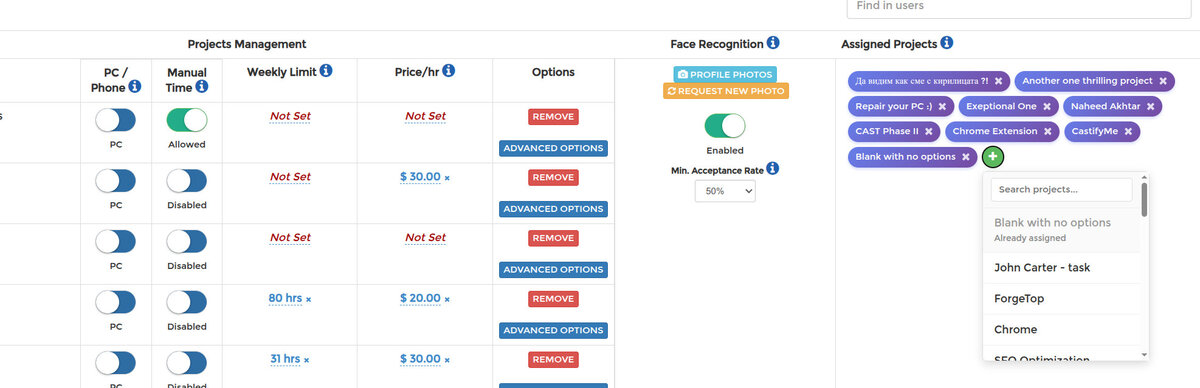
Assigning a project from the green plus button: dropdown with search and already assigned projects grayed out

The project appears as a pill next to the employee's name, and the employee is notified by email. Ask them to log out of the time tracking application and back in so the new project shows up there.
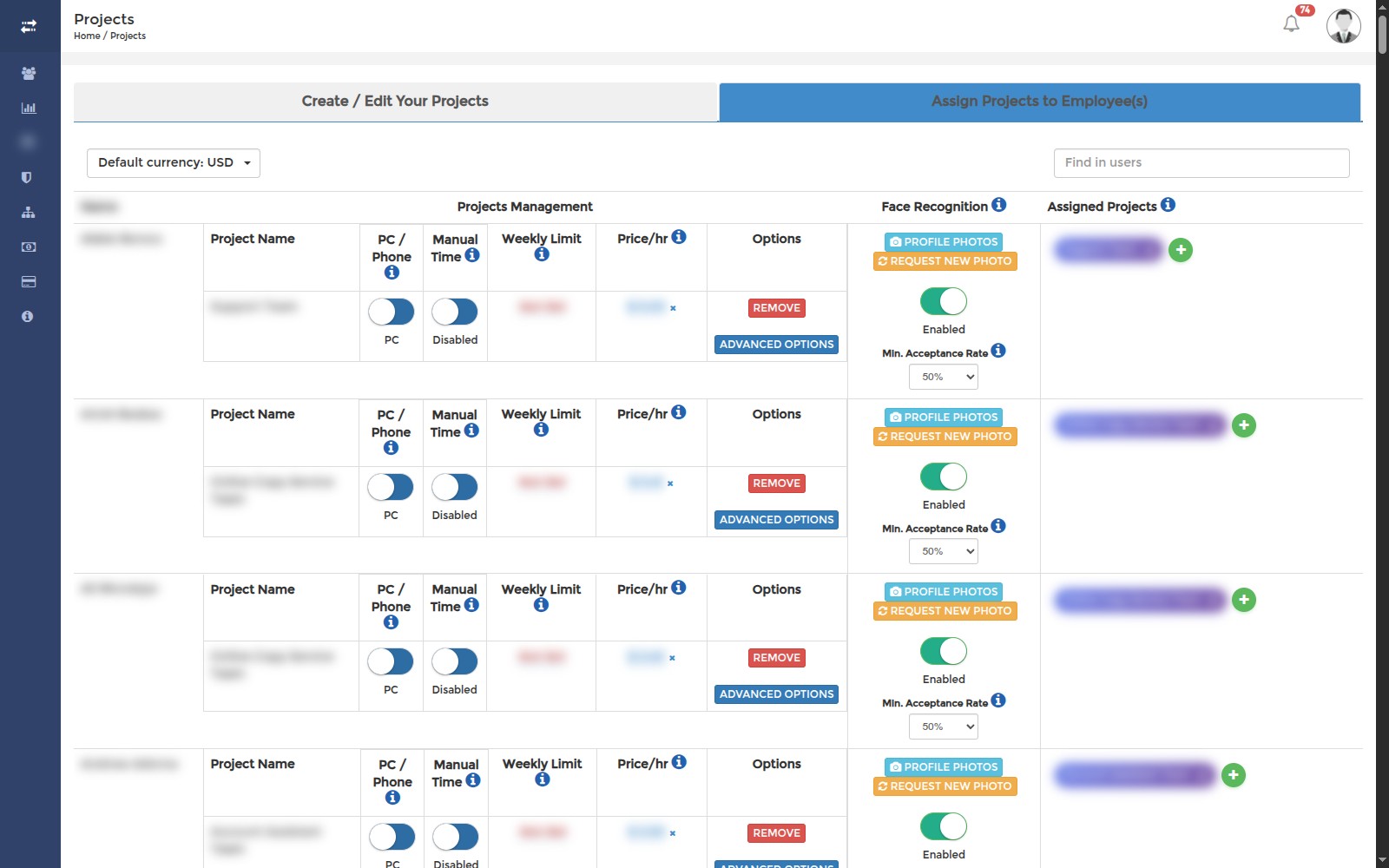
Assign Projects to Employee(s) tab: per-employee project rows with device, manual time, weekly limit, rate and options

See it in your own work logs

SCREENish is free to try — no credit card required.

Start free

← All guides

  • How it works
  • Prices & FAQ
  • Blog
  • Sign Up
  • Log In
  • Contact Us
  • Try SCREENish for free
  • Cookie Settings

Solutions

  • Mouse Jiggler Detection Software
  • Faked Activity Detection
  • Overemployment Detection for Remote Teams
  • Remote Employee Identity Verification
  • Face Recognition Time Tracking
  • Employee Attendance & Overtime Reports
  • Compare Alternatives
  • Feature Guides
  • Blog Articles
  • Pricing & Plans

From the Blog

  • Can Employers Detect Mouse Jigglers?
  • How to Tell If Activity Is Real: What the OS Flags as Fake Input
  • 12 Signs a Remote Employee Is Working Two Jobs
  • Proxy Workers: How to Tell If Someone Else Is Doing the Job
  • GDPR-Compliant Employee Monitoring: A Practical Checklist
  • Best Time Tracking Software with Screenshots (2026)
  • If an Employee Deletes a Screenshot, What Can the Employer Still See?
  • Idle Time Settings: How Many Minutes to Deduct
  • A Fair Mouse-Jiggler Policy for Remote Teams
  • Overemployment in 2026: The Numbers
© SCREENish 2026 All right reserved. By SCREENish.com | Terms of Service | Privacy Policy | Cookie Policy