
ClickUp: Pushing Tracked Time to Tasks
Connect ClickUp under API & Integrations and SCREENish adds a time entry to a ClickUp task with each member's approved time on that project for the day. When a day changes because more entries are approved, the same time entry is updated, so a task never collects duplicates. Optionally an activity review opens a task of its own.
What you need from ClickUp
- A personal API token. In ClickUp open your avatar > Settings > Apps and generate a token — it starts with
pk_. The token acts as you in ClickUp, the time entries appear under your user, and you can regenerate it there at any time. SCREENish stores it encrypted and never shows it again. - The task id for each project. Open the task, use Copy ID from its menu (or take the part after
/t/in its address). One SCREENish project maps to one task.
Connecting
- Open API & Integrations in the left menu. If it is your first connection, accept the API access terms shown at the top.
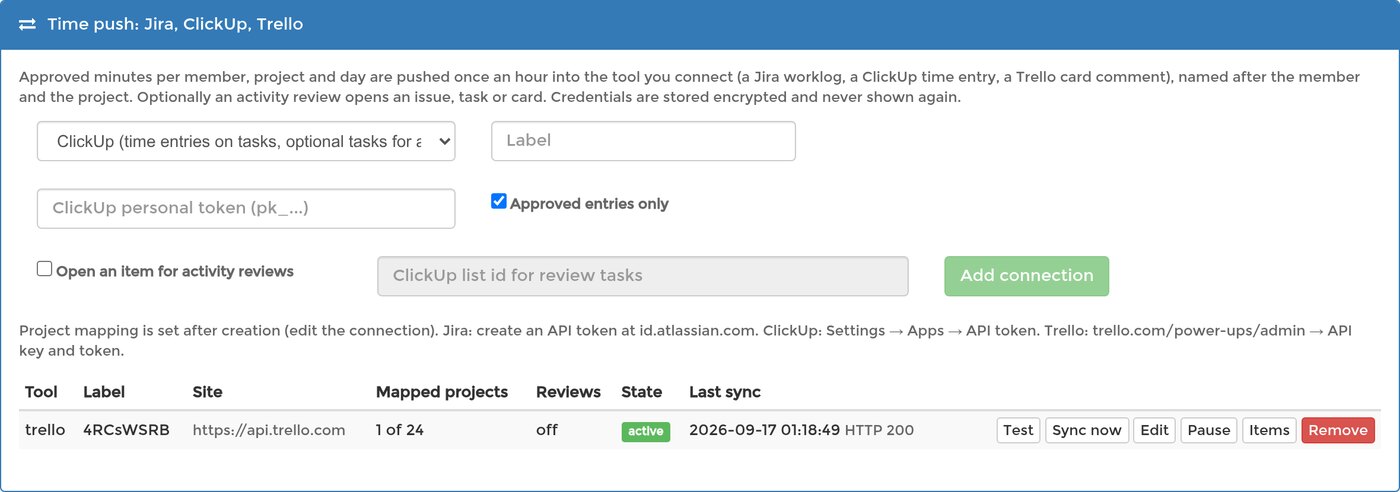
- In Time push: Jira, ClickUp, Trello choose ClickUp, give the connection a label, paste the token, and press Add connection.
- Press Test before anything else: it reads Connected as your ClickUp username and, while doing so, finds your workspace. A sync attempted before the first successful test has no workspace to write to and says so.
- Press Edit, type the task id next to each project that should reach ClickUp, and press Save. Projects left empty are skipped. Then press Sync now.
What appears in ClickUp
Each mapped task receives one tracked-time entry per member and day, starting at that day and lasting the tracked duration, described with the member's name and the project — for example Screenish: Ann Lee, Support Team, 2026-09-17. It carries the member's name, the project and the duration and nothing else: no screenshots, application names, window titles or pay rates ever leave SCREENish through a connection.
How often, and what is pushed
- SCREENish pushes automatically once an hour and looks at the last three days, so time approved later still reaches the task. Sync now runs the same push immediately.
- With Approved entries only (the default) only approved time is pushed; a day with no approved entries produces no entry. Turn it off in Edit to push every entry.
- Items lists what was pushed: the member, project and day, the ClickUp time entry it became, and the minutes it carries.
Activity reviews as tasks
Turn on Open an item for activity reviews in Edit and enter the id of the ClickUp list that should receive them (a number; open the list and take it from its address). Each new activity review then creates a task named after the member, the severity and the day, with the time window in its description. It is a flag for human review, not a finding; nothing about how the review was detected is sent.
Pausing, replacing the token, removing
- Pause stops pushing without losing the mapping; Resume continues.
- If ClickUp keeps refusing the connection (for example after you regenerate the token) SCREENish pauses it after repeated failures and shows the reason on the row. Paste a new token under Edit → Replace credentials and resume.
- Remove erases the stored credentials and the list of pushed items; time entries already written stay in ClickUp.
The same panel connects Jira Cloud (worklogs on issues) and Trello (comments on cards) in the same way, with an issue key or a card instead of a task id.