
Fixing System Time Errors
If the tracking application reports “Your device clock is N minutes ahead” (or behind), or “Unable to upload report because your system time is not correct”, tracking pauses until you sync your computer's clock — correct timestamps are what make tracked hours trustworthy.
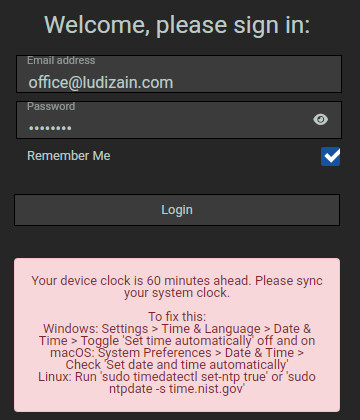
The fix is to re-sync the system clock:
- Windows: Settings > Time & Language > Date & Time > toggle Set time automatically off and back on (or click Sync now).
- macOS: System Preferences > Date & Time > check Set date and time automatically.
- Linux: run sudo timedatectl set-ntp true (or sudo ntpdate -s time.nist.gov).
Once the clock is correct, log in and start the timer again — anything recorded before the pause uploads automatically.