
Screenshots: Choosing a Privacy Blur Mode
When screenshots are enabled for a project, you can choose how much of each screenshot stays readable. Go to PROJECTS, open the project's Advanced Options, and while Allow Screenshots is on you will see the Privacy & Security — Screenshot Blurring panel with three choices:
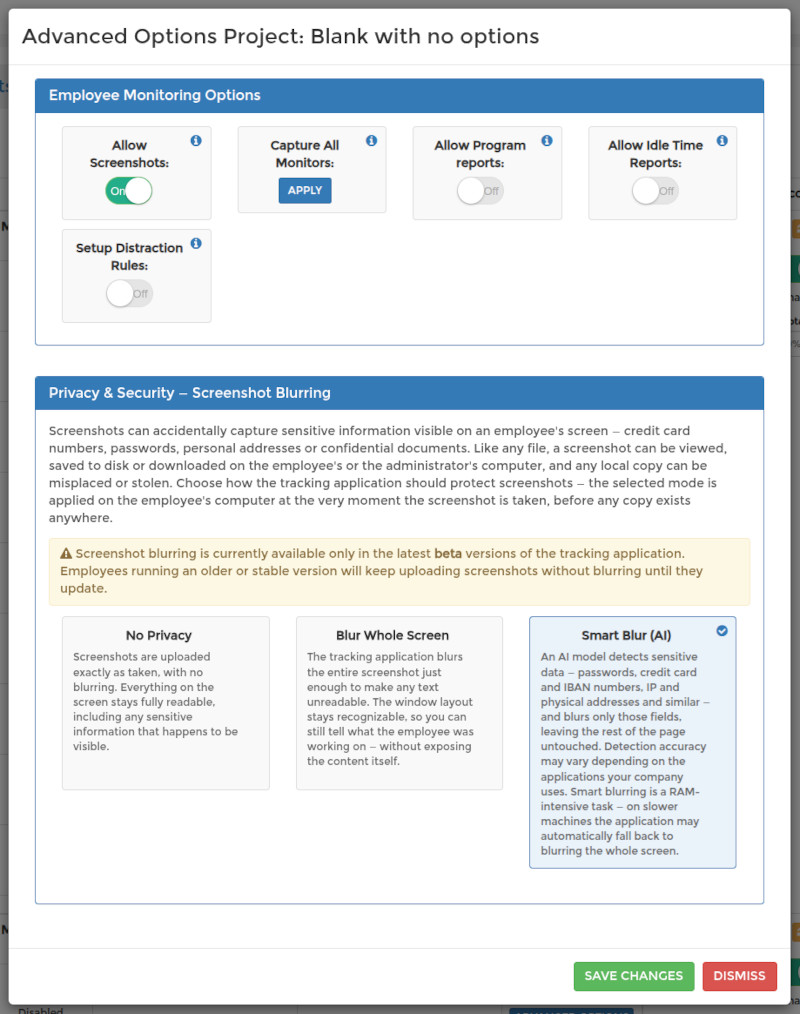
- No Privacy — screenshots are uploaded exactly as taken, with nothing blurred.
- Blur Whole Screen — the entire screenshot is blurred just enough that no text is readable, while the window layout, colours and general activity stay visible, so work is still verifiable.
- Smart Blur (AI) — the app reads the screen and blurs only the detected sensitive information (passwords, card and IBAN numbers, emails, phone numbers, addresses, names and similar), leaving the rest readable.
Blurring happens on the employee's own computer, before the screenshot is uploaded — with blur enabled, an un-blurred copy never leaves the machine. Smart Blur needs working memory and can automatically switch to whole-screen blur on some screens — see Screenshots: When Smart Blur Blurs the Whole Screen.
Screenshot blurring requires the current version of the tracking application. Employees on an older version keep uploading screenshots without blurring until they update.