
Slack: Getting SCREENish Alerts in a Channel
SCREENish can post into a Slack channel when someone starts or stops tracking, when an activity review opens, when a face check fails, when the team changes — and a summary of yesterday every morning. You choose the channel and the events; no Slack app has to be installed from a marketplace.
Step 1: get an incoming webhook URL from Slack
- Open api.slack.com/apps and press Create New App > From scratch. Name it (SCREENish, for example) and pick your workspace.
- Open Incoming Webhooks and switch Activate Incoming Webhooks on.
- Press Add New Webhook to Workspace, choose the channel, and allow it.
- Copy the Webhook URL that appears. It starts with
https://hooks.slack.com/services/and is a secret: anyone holding it can post into that channel.
Step 2: add the connection in SCREENish
- Open API & Integrations in the left menu. If it is your first connection, accept the API access terms shown at the top.
- In Connections: webhooks and chat choose Slack (incoming webhook URL) from the first list.
- Give it a label (the channel name is a good one), paste the webhook URL, and tick the events you want.
- Press Add connection, then Test. A line saying Screenish: connection test successful. should appear in the channel within a second or two.
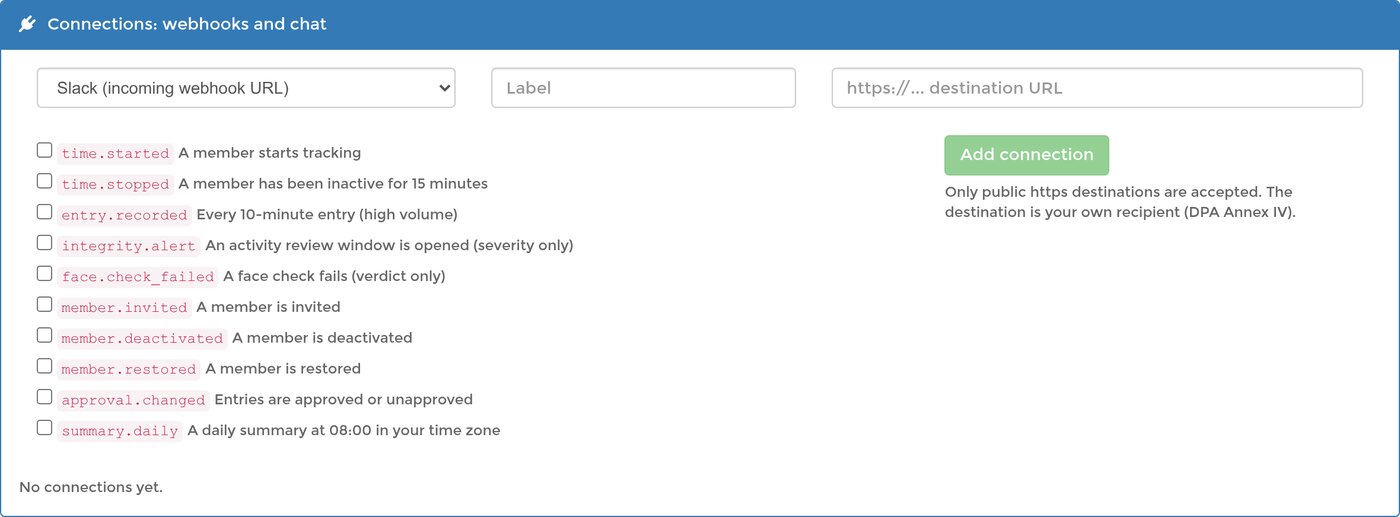
Which events to tick
- A member starts tracking — Ann Lee started tracking (09:14).
- A member has been inactive for 15 minutes — Ann Lee stopped tracking after 96 min (10:50).
- An activity review window is opened — Activity review: Ann Lee, severity high, 14:20 to 14:40 (2026-09-17). Open the worklog to review.
- A face check fails — Face check failed: Ann Lee at 2026-09-17 11:02.
- A member is invited, deactivated or restored — one line naming the member and the change.
- Entries are approved or unapproved — Approved 42 entries for Ann Lee.
- A daily summary at 08:00 in your time zone — yesterday's hours per member, with idle and manual minutes and any reviews, and the team total.
- Every 10-minute entry — one line per entry per member. On a team of ten this is hundreds of messages a day; tick it only for a quiet test channel.
For most teams the useful set is the daily summary plus activity reviews. Start there and add more later; the tick boxes can be changed by removing the connection and adding it again.
When messages stop arriving
- Deliveries on the connection's row lists every message SCREENish tried to send: the event, how many attempts, whether it was delivered, when the next attempt is due, and Slack's answer.
- A message that fails is retried after 1, 5 and 30 minutes, then 2 and 6 hours, and abandoned after five attempts.
- If Slack keeps refusing — usually because the webhook was deleted in Slack or the app was removed from the workspace — the connection is paused automatically and the row says why. Create a new webhook URL in Slack, add the connection again, and remove the old row.
- Pause stops the messages while you are, say, running a migration; Resume starts them again. Remove deletes the connection entirely.
What is never posted
The messages carry hours, activity counts, member and project names, and verdicts. They never carry screenshots, application names, window titles, biometric data or pay rates, and an activity review is reported as a severity and a time window only — never how it was detected. Remember that whoever can read the channel can read all of this: pick the channel with that in mind.
Microsoft Teams, Discord and Google Chat work the same way — see Microsoft Teams, Discord and Google Chat: Getting SCREENish Alerts. To send the same events to your own software instead, see Zapier, Make and n8n and the developers page.