
Team Overview: Your Whole Team on One Page
The Team Overview page is the employee time tracking dashboard for your whole team at once: who is online right now, when each person started working today, how many hours they tracked, and where those hours went — without opening employees one by one. You will find it in your dashboard menu as TEAM; everything on it uses your (the employer's) timezone, and the numbers refresh automatically every few minutes.
The page opens on the Overview — today tab. Four stat tiles summarize the day: Tracked today (total hours the team has tracked so far), Online now (how many of your active employees are currently tracking), Tracked over the last 7 full days, and a Flagged tile that turns red when the automatic activity checks found something in the last 7 days — clicking it opens the review page.
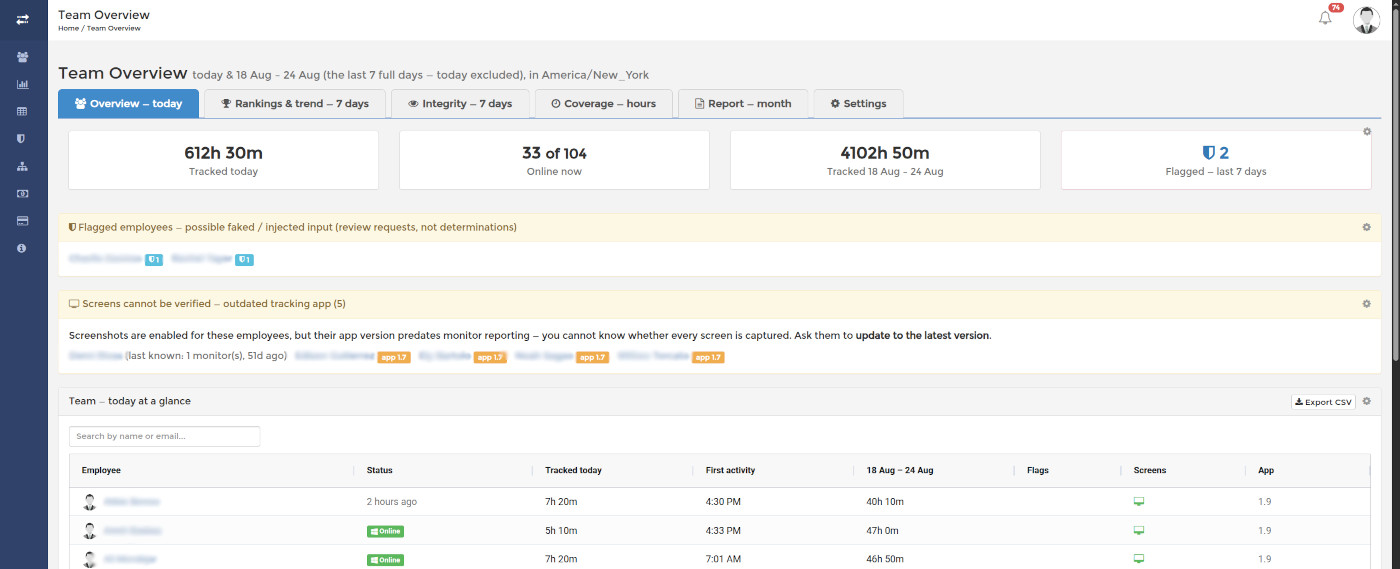
Two strips appear only when they have something to say. Flagged employees lists people with possible faked or injected input — these are review requests, not determinations: always verify in the work log before drawing conclusions. Screens cannot be verified lists employees whose tracking app is too old to report how many monitors it sees — ask them to update.
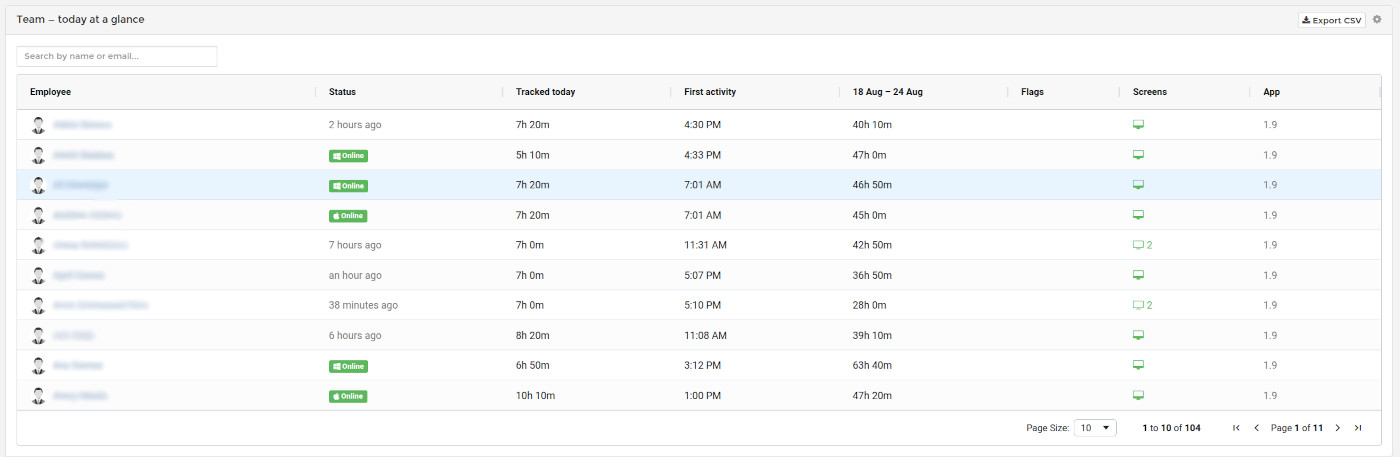
Team — today at a glance
The main roster table shows every active employee with: Employee (click the name to open their work log), Status (online now, or when they were last seen and on which platform), Tracked today, First activity (when their workday actually started — useful as a daily attendance check), their total for the last 7 full days, Flags (activity-check results), Screens (how many monitors their tracking app currently sees), and App (the tracking app version, with an outdated badge when a newer desktop version exists). The table is searchable, sortable, and exports to CSV.
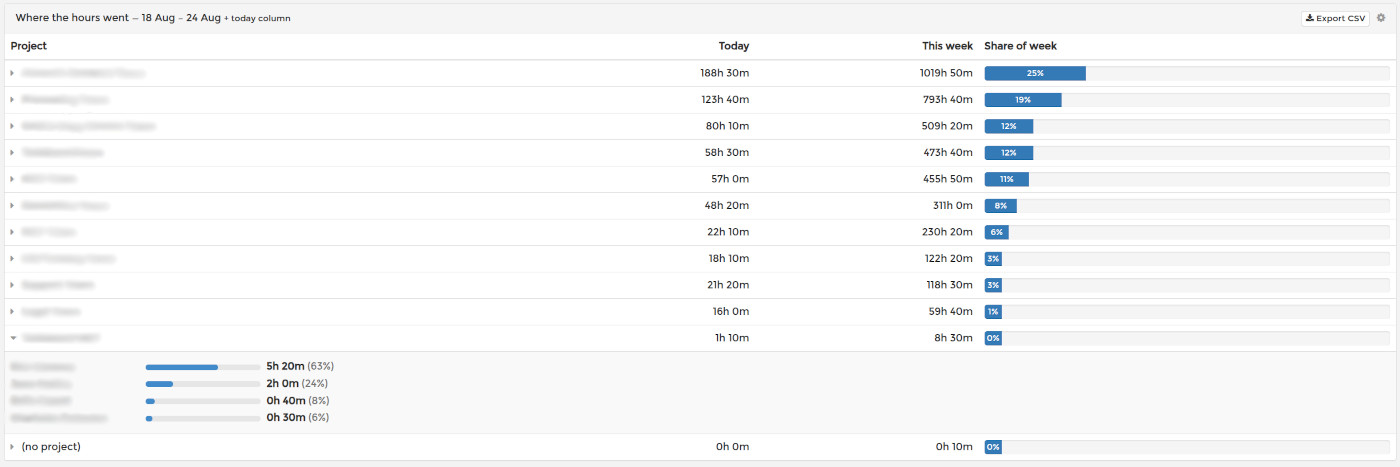
Where the hours went
The projects table breaks the same period down by project: hours in the last 7 full days plus a today column, with a per-employee split for each project — hover or expand a row to see exactly who contributed the time. Projects nobody touched this week stay listed but greyed out, so forgotten projects remain visible. For per-project attendance and overtime, see Team Overview: The Monthly Attendance and Overtime Report.
Attendance — week
The Attendance tab is a weekly grid of start and end times, one row per employee and one column per day, with an average start per person. Set your working hours (for the team, and custom ones for anyone on a different shift) and every day is marked on time, late, early or absent, with weekly counts. Read more: Team Overview: Attendance, Start and End of Work by Week.
Every widget on the page can be hidden or re-enabled — see Team Overview: Choosing Which Widgets You See.