Time Tracking with Screenshots Logo
  • How it works
  • Prices & FAQ
  • Blog
  • Sign Up
  • Log In
  • Contact Us
  • Try SCREENish for free
  1. SCREENish
  2. How it works
  3. Using Active Programs Reports

Using Active Programs Reports

Go to Assign Project To Employee(s) > Advanced Options > Allow Programs Reports.

This tracks all applications used while time tracking runs. Reports show how long each program was active and what windows were open.

Weekly email reports include both idle time and active programs data.
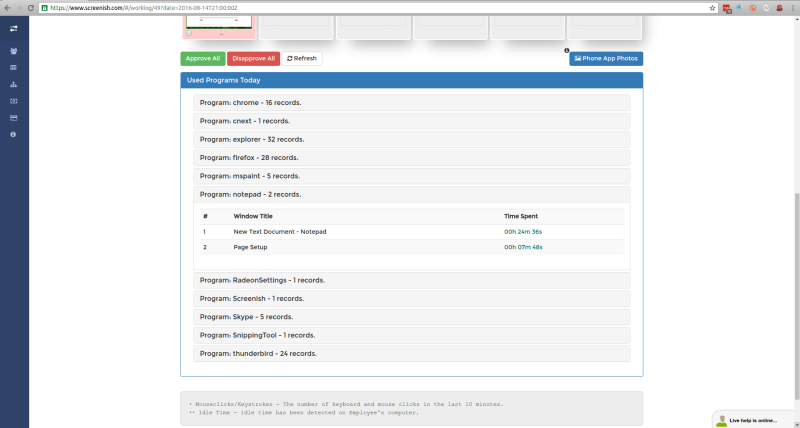
Programs reports

See it in your own work logs

SCREENish is free to try — no credit card required.

Start free

← All guides

  • How it works
  • Prices & FAQ
  • Blog
  • Sign Up
  • Log In
  • Contact Us
  • Try SCREENish for free
Random Blog Posts
  • Verification Is The Ultimate Form Of Trust
  • A Guide To Teamwork Between Outsourced Professionals
  • Key Principles Of Risk Management For Future And Ongoing Projects
  • Key Principles To Creating Project Strategies
  • Be the one in control of your tasks
  • Most commonly hired type of outsourced professionals
  • How to increase the productivity at the workplace
  • Key principles to effective management of outsourced projects
  • Few tips on how to decrease the costs of your office
  • Project and process time management
© SCREENish 2026 All right reserved. By SCREENish.com | Terms of Service | Privacy Policy & Cookies