Time Tracking with Screenshots Logo
  • How it works
  • Prices & FAQ
  • Blog
  • Sign Up
  • Log In
  • Contact Us
  • Try SCREENish for free
  1. SCREENish
  2. How it works
  3. Using Notes and Reminders

Using Notes and Reminders

When you start tracking, a notes window appears. Enter a brief description of what you're working on. Set a reminder interval in the bottom-left corner to get prompted to update your notes.
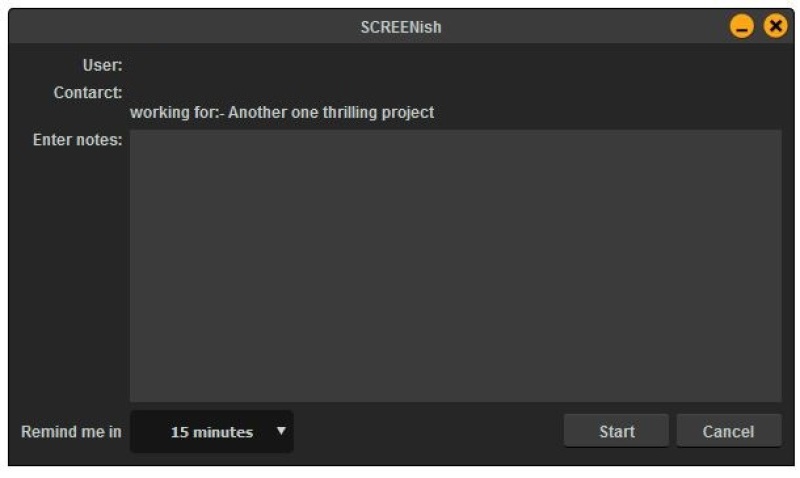
Notes and reminders

See it in your own work logs

SCREENish is free to try — no credit card required.

Start free

← All guides

  • How it works
  • Prices & FAQ
  • Blog
  • Sign Up
  • Log In
  • Contact Us
  • Try SCREENish for free
Random Blog Posts
  • Verification Is The Ultimate Form Of Trust
  • A Guide To Teamwork Between Outsourced Professionals
  • Key Principles Of Risk Management For Future And Ongoing Projects
  • Key Principles To Creating Project Strategies
  • Be the one in control of your tasks
  • Most commonly hired type of outsourced professionals
  • How to increase the productivity at the workplace
  • Key principles to effective management of outsourced projects
  • Few tips on how to decrease the costs of your office
  • Project and process time management
© SCREENish 2026 All right reserved. By SCREENish.com | Terms of Service | Privacy Policy & Cookies