
Using the Prevent Distractions Feature
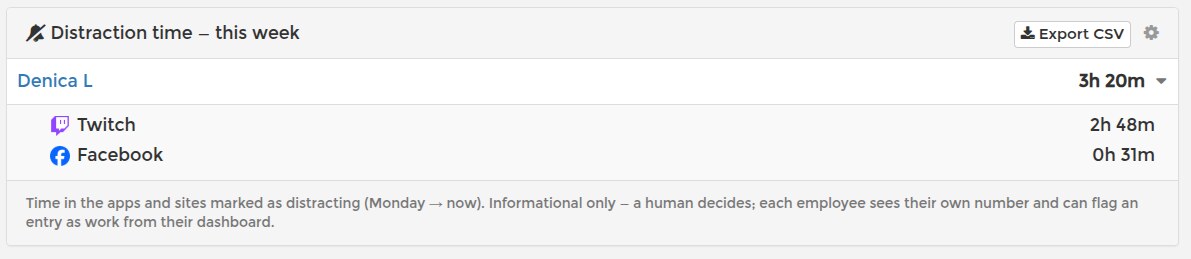
Distraction reporting shows you how much time each employee spends in the websites and programs you mark as distracting — without interrupting anyone. Nothing pops up on the employee's screen. The time is measured quietly and reported, and a human decides what it means.
Turn it on per employee: PROJECT > Assign Projects to Employee(s) > Advanced Options > Distraction Reporting. It needs Program Reports on the same assignment — the time is counted from the program log, and the panel will ask you to enable it if it is off.
Where you see the numbers:
- The employee's worklog — a "Distractions: N min" total next to the day's hours, with the top entry on hover.
- Team Overview > Integrity — the whole team's distraction time for the week, with CSV export. Click an employee's row to open the breakdown — which apps and sites the minutes went to, each with its site icon.
- A weekly e-mail every Monday — one line per employee, sent to you; each employee also receives their own number.
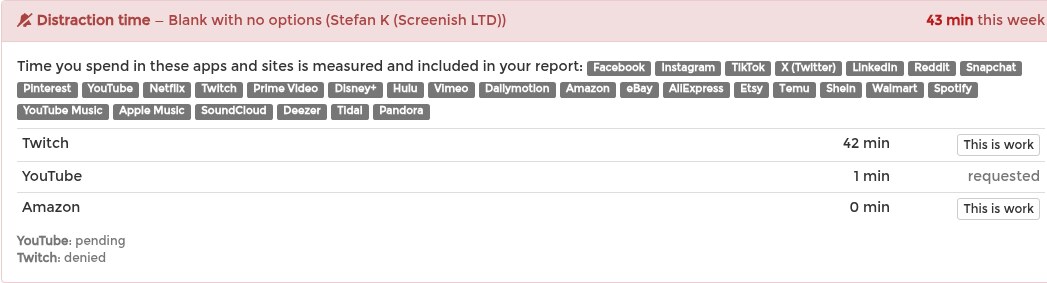
What the employee sees: their own dashboard shows the same number, the breakdown by site or program, and the exact rules that apply to them. If something is part of their job — say, an employee who edits YouTube videos — they press This is work next to the entry and explain why.
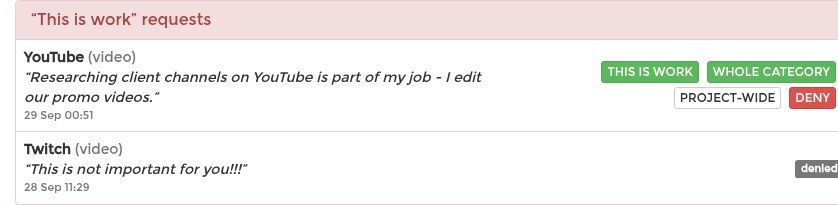
Resolving a request: a red counter appears in your dashboard menu and on the Projects page the moment a request is filed. Click it — the employee's Advanced Options opens by itself, with the request and four choices: stop counting that entry for this employee, turn the whole category off for them, exclude the entry for the entire project, or deny with a note. Approving also recalculates the current week, so the number you both see stays fair.

Distraction time is informational. It never docks time or pay by itself.