Time Tracking with Screenshots Logo
  • How it works
  • Prices & FAQ
  • Blog
  • Sign Up
  • Log In
  • Contact Us
  • Try SCREENish for free
  1. SCREENish
  2. How it works
  3. Work Logs: Machine and System Info

Work Logs: Machine and System Info

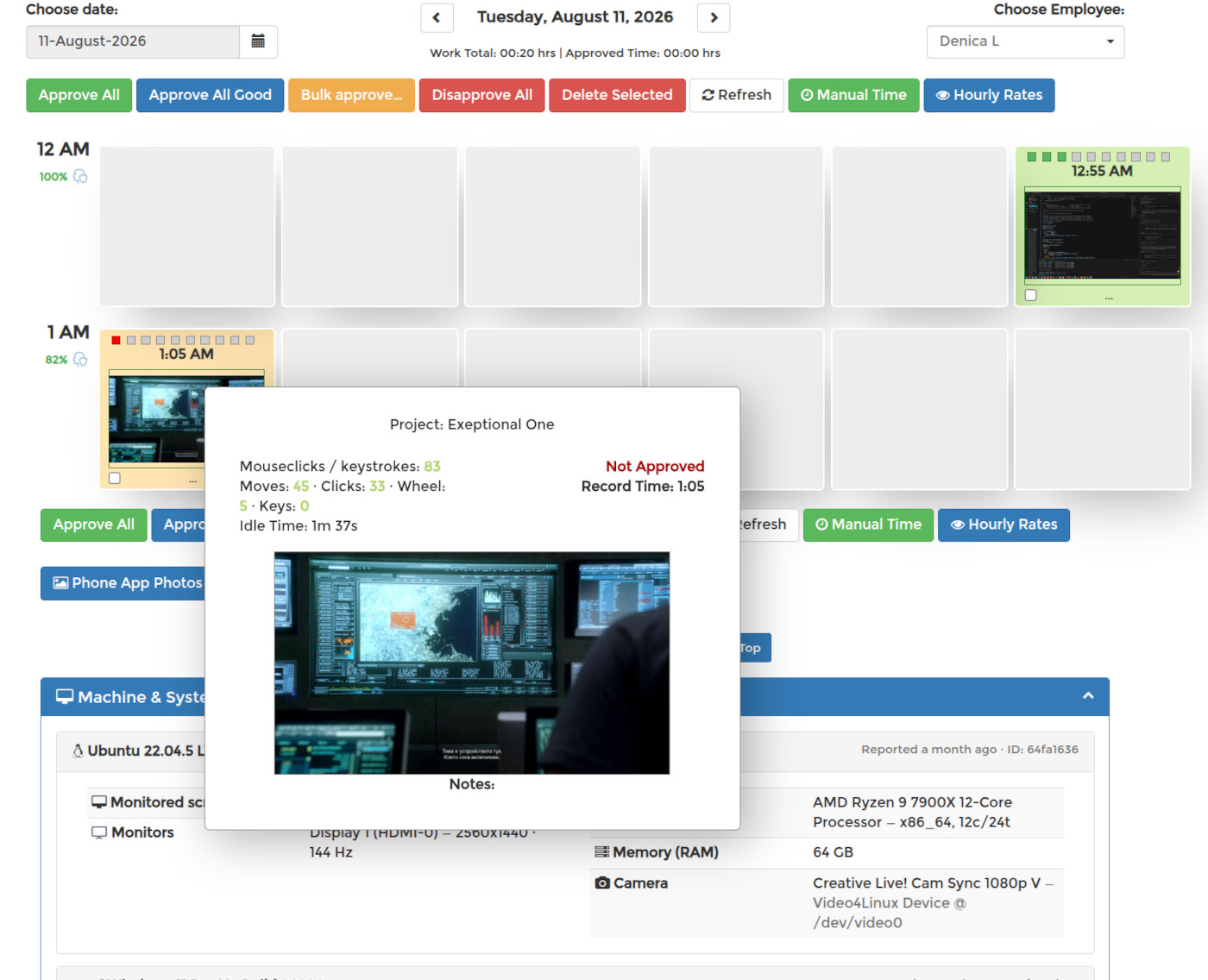
Open the Machine & System Info panel in WORK LOGS to see the computers an employee tracks time on. Every machine running a recent version of the desktop app is listed automatically, with a green dot when it is online now.

Each card shows the operating system, the monitors and their resolution, how many screens are being captured, the CPU, the RAM and any cameras. It is useful when you are working out why screenshots look wrong, why a second screen is missing, or whether a machine can run face checks at all.

The panel is collapsed by default and is visible only to managers. Employees can always see what is collected about them in the privacy policy.
See it in your own work logs

SCREENish is free to try — no credit card required.

Start free

← All guides

  • How it works
  • Prices & FAQ
  • Blog
  • Sign Up
  • Log In
  • Contact Us
  • Try SCREENish for free
Random Blog Posts
  • Verification Is The Ultimate Form Of Trust
  • A Guide To Teamwork Between Outsourced Professionals
  • Key Principles Of Risk Management For Future And Ongoing Projects
  • Key Principles To Creating Project Strategies
  • Be the one in control of your tasks
  • Most commonly hired type of outsourced professionals
  • How to increase the productivity at the workplace
  • Key principles to effective management of outsourced projects
  • Few tips on how to decrease the costs of your office
  • Project and process time management
© SCREENish 2026 All right reserved. By SCREENish.com | Terms of Service | Privacy Policy & Cookies