
Chrome Extension: Getting Started
The SCREENish Chrome extension tracks time on any computer that runs Chrome — including Chromebooks — with nothing to install beyond the browser.
- Install the extension from the link your employer sent.
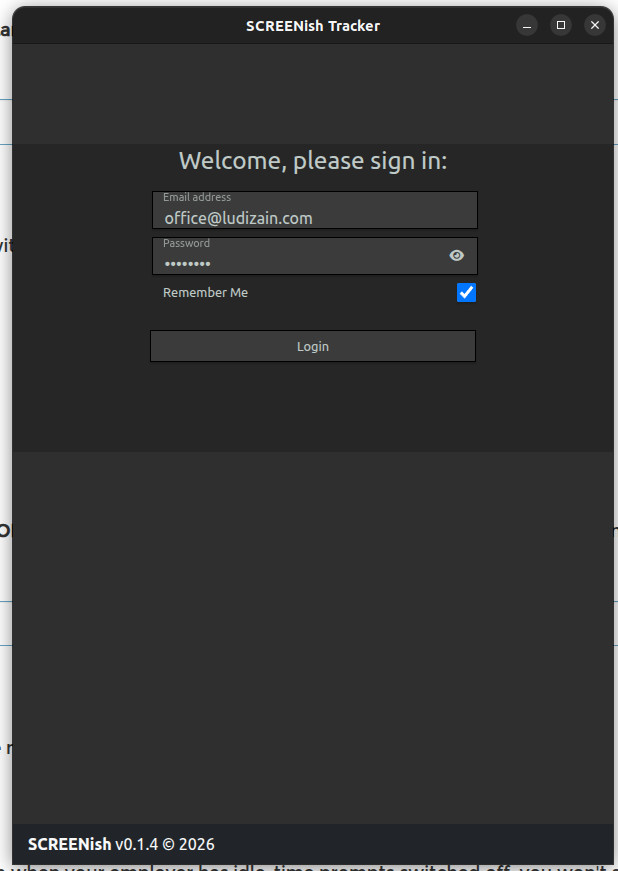
- Click the SCREENish icon in Chrome and log in with your employee account.
- Choose your Project Manager (your employer) and project, then press START TRACKING TIME. Missing a project? See Chrome Extension: Choosing the Project Manager and Project.
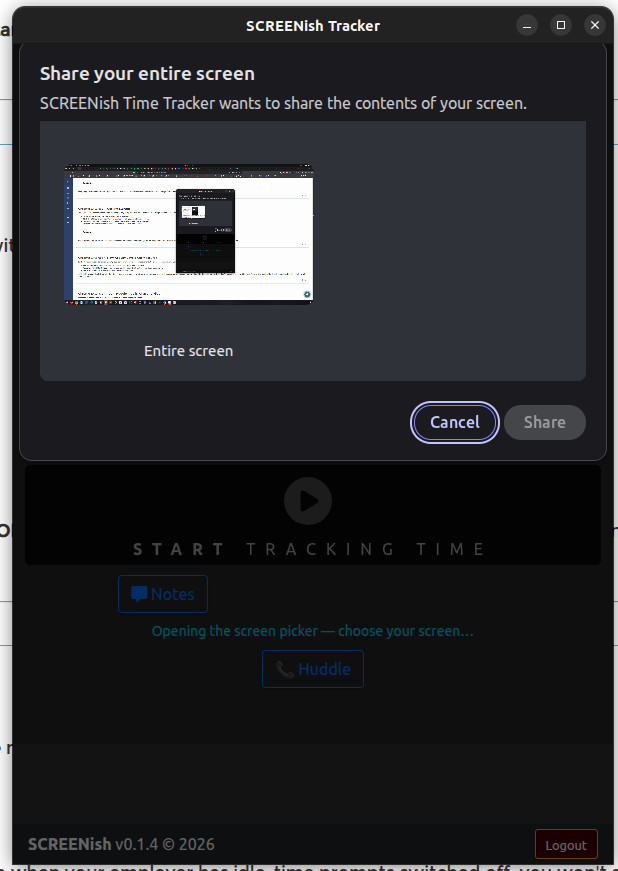
- Chrome asks which screen to share — select your screen and confirm.
While tracking, the extension takes one screenshot per minute and reports your time every 10 minutes. Press STOP TRACKING TIME (or end the screen share) and tracking stops instantly.