
Low Memory: Turning On Virtual Memory (Pagefile) in Windows
Follow this guide if SCREENish told you that this computer's virtual memory (pagefile) is turned off, or that it is fixed at a size that is too small.
What is the pagefile, in one paragraph?
The pagefile is a hidden file on your disk that Windows uses as a safety cushion when your memory (RAM) fills up. With the cushion in place, a busy day just makes the computer a bit slower. Without it, the moment RAM runs out, programs start crashing — including the time tracker, which can cost you recorded work hours. Some “PC optimization” guides recommend disabling it; that advice is outdated and harmful.
Steps (Windows 10 and Windows 11)
- Press the Windows key, type advanced system settings, and open View advanced system settings.
- In the window that opens, on the Advanced tab, under Performance, click Settings…
- Go to the Advanced tab again, and under Virtual memory, click Change…
- Tick the checkbox at the top: Automatically manage paging file size for all drives.
(If it is already ticked but SCREENish still warned you, untick it, select drive C:, choose System managed size, click Set, then tick the automatic checkbox again.) - Click OK on every window. Windows will ask to restart — restart the computer now.
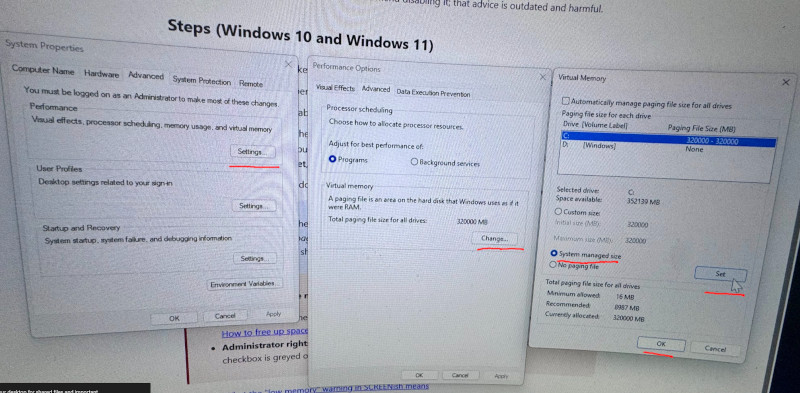
Check it worked: after the restart, open the same Virtual memory dialog (steps 1–3). It should say Automatically manage paging file size for all drives is ticked, and the number next to Currently allocated at the bottom should not be 0.
Two things the pagefile needs to help you:
- Free disk space. The cushion lives on drive C:. If C: is almost full, Windows cannot grow it — see Low Memory: Freeing Up Space on the Windows System Drive (C:).
- Administrator rights. On a company-managed PC these settings may be locked. If the checkbox is greyed out, forward this article to your IT support.
Related: Low Memory: What the Warning Means and How to Fix It