
Low Memory: What the Warning Means and How to Fix It
If SCREENish shows a red bar at the top of the app, or a popup that says something like:
Action needed: this computer can crash and lose work time…
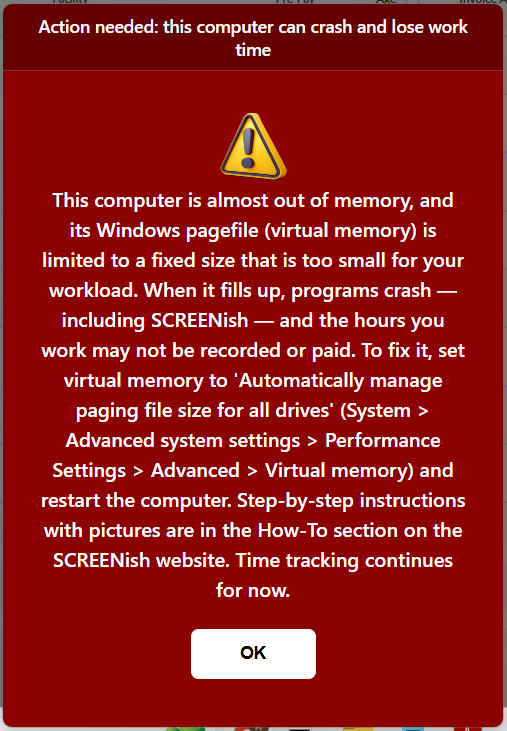
it means your computer is running out of memory, and — more importantly — Windows has no safety cushion left to absorb it. When a computer runs out of memory completely, programs crash without warning. If SCREENish crashes while you are working, the minutes until it comes back may not be recorded, and may not be paid. That is why the app warns you loudly.
Good to know: SCREENish keeps tracking while the warning is shown. It also protects itself: if memory gets so low that taking a screenshot becomes impossible, it saves a special “low memory” notice image for that minute instead, so your time is still counted. But the computer itself remains at risk — other programs can still crash — so please don't ignore the warning.
Fix it now (takes 2 minutes)
- Close what you don't need. Extra Chrome windows and tabs are the most common memory eaters. Close the tabs you are not using right now.
- Restart the computer before your shift. A restart clears memory leaks that build up over days (Windows itself can slowly leak memory until you reboot).
Fix it permanently
The warning text tells you which situation applies to your computer:
- If it says the pagefile (virtual memory) is turned OFF or is fixed at a size that is too small, follow Low Memory: Turning On Virtual Memory (Pagefile) in Windows.
- If it says the system drive is almost full, follow Low Memory: Freeing Up Space on the Windows System Drive (C:).
- If the warnings keep coming back even after both fixes, your computer simply has too little memory for your daily workload. Ask about adding more RAM — going from 8 GB to 16 GB solves this for almost everyone.
Work computer? If this PC is managed by your company, you may not have permission to change these settings. Forward this article to your IT support — the fix takes them a couple of minutes.