
Restoring Your Former Team After You Resubscribe
When you start a subscription again after your account was closed, you do not have to invite everyone from the beginning. SCREENish kept the list of the people who were on your team and shows it to you in a window called Your former team. This guide explains what the window shows, how the seats are counted and what happens to each person you bring back.
What SCREENish remembers
When a subscription ends and the account closes, everyone on the team is deactivated and delegated managers lose their admin rights. SCREENish remembers who was on the team and how each person stood: an employee who had accepted, an invitation that was still pending, a delegated manager.
The window opens by itself
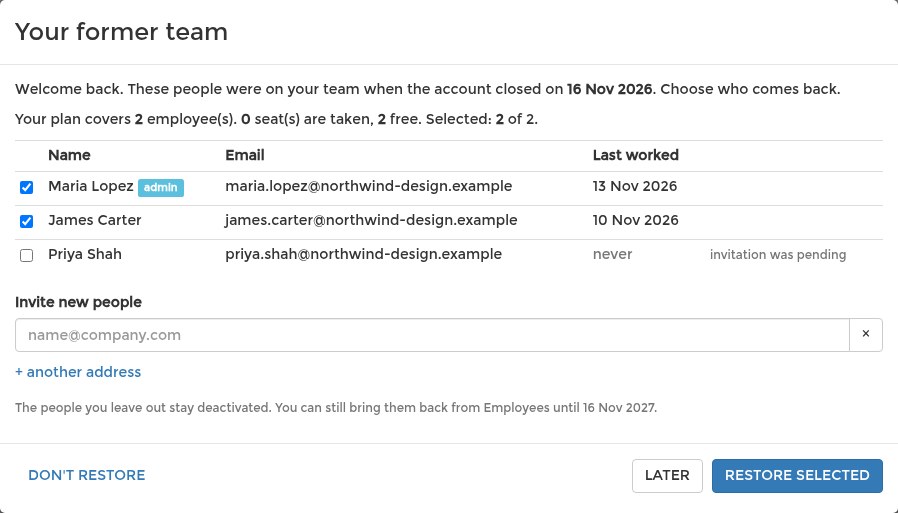
After you start a subscription again, the Your former team window opens by itself on your dashboard. It lists the people who were on your team when the account closed, each with their e-mail address and the date they last worked, or "never" if they did not. People you had deactivated yourself before the account closed are not in the list.
The line at the top says how many employees your plan covers, how many seats are taken, how many are free and how many people you have selected.
Who is ticked already
Some people are ticked when the window opens. The people who worked most recently come first, then the people whose invitation was still pending, until the free seats are used. You can change the ticks freely.
For accounts that closed before mid-November 2026, SCREENish did not yet keep a record of how each person stood. In that case nobody is ticked in advance and a short note in the window says so. Tick the people you want back.
More people than free seats
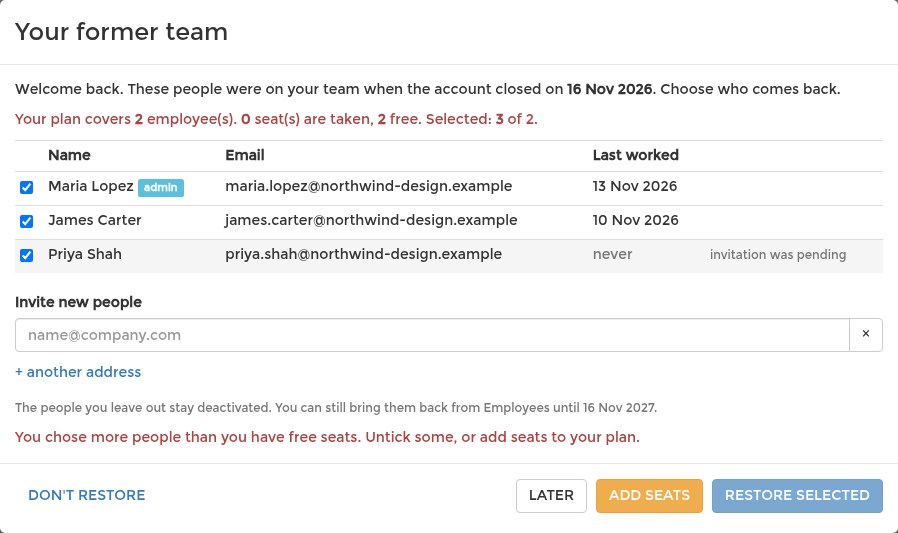
If you select more people than you have free seats, the line at the top turns red and a message says so. Restore selected is locked and an Add seats button appears.
You can untick some people, or click Add seats. It takes you to the Subscription page, where you raise your plan. After the plan change the window opens again.
Inviting new people at the same time
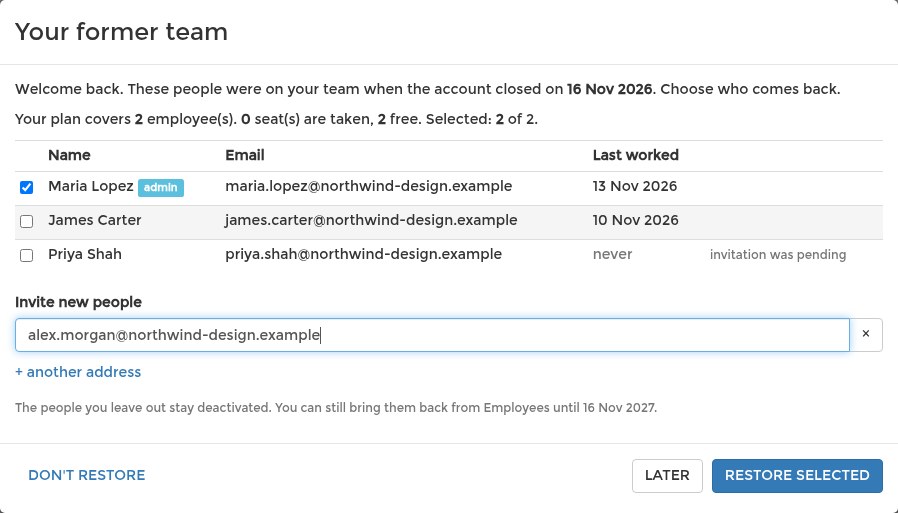
Under Invite new people you can type the e-mail address of someone who was not on the team before. + another address adds another field. Each new address takes a seat from the same count as the people you restore.
Restore selected
Click Restore selected and each person comes back the way they were:
- An employee who had accepted is active again, with the same projects and settings.
- A pending invitation is pending again, and the person accepts it the usual way.
- A delegated manager gets the same rights back.
A short message then says how many people were restored.
What your people receive
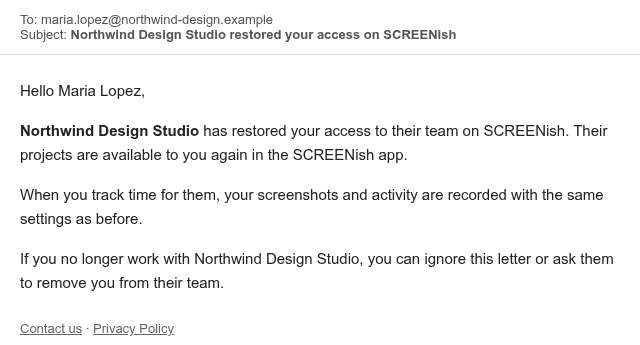
Each restored person receives an e-mail from SCREENish. It says either that your company restored their access, or that your company re-opened their invitation. The e-mail names your company.
Later and Don't restore
Later closes the window; it opens again the next time you open SCREENish in a new browser tab or window. Don't restore stops the window from opening by itself.
People you did not bring back
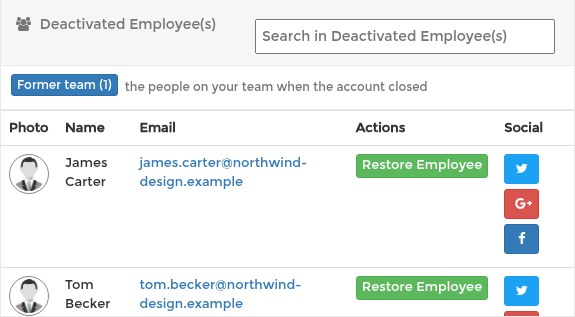
People you did not bring back stay in Deactivated Employee(s) on the Users page. The Former team button above that list opens the window again at any time. It shows how many people that is, for example "Former team (1)". Each person also has a Restore Employee button of their own.
Former team members can be brought back for one year after the account closed. After that they leave the list and you would invite them again.
Read more: When Your Subscription Ends: What Happens to Your Team, Users: The Complete Guide.