
Windows: Fixing the 0xc0000142 Startup Error
Follow this guide if SCREENish closes the moment you start it and Windows shows SCREENish.exe — Application Error with the message The application was unable to start correctly (0xc0000142). Your PC is missing a standard Microsoft component that SCREENish needs — reinstalling SCREENish will not add it, but the steps below fix it for good.
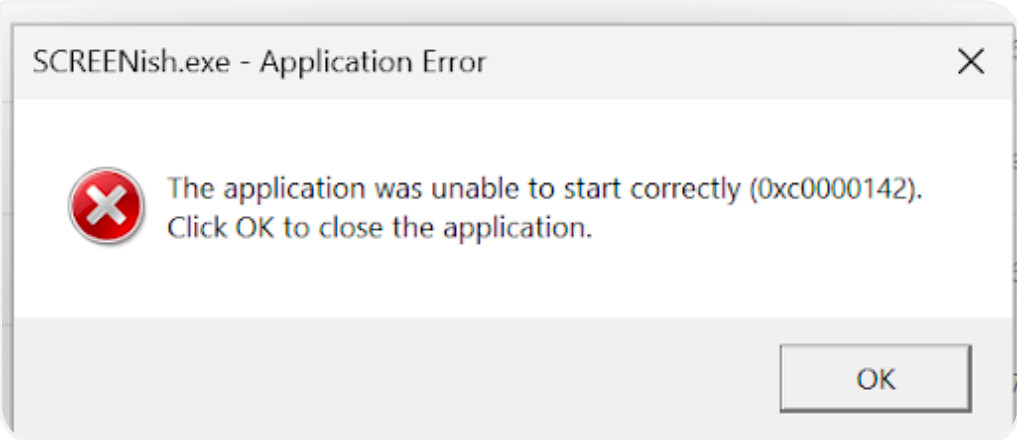
Fix it (about 5 minutes)
You do not need to uninstall or reinstall SCREENish. Leave it where it is.
- Download the Microsoft runtime. Open this official Microsoft link — it downloads a file called
vc_redist.x64.exe. - Run it. Double-click
vc_redist.x64.exe, tick I agree to the license terms and conditions, then click Install. If it tells you the runtime is already installed, choose Repair instead. - Restart the computer. Do not skip this — Windows finishes putting the runtime files in place during the restart.
- Open SCREENish and log in. It should start normally and your timer should work as usual.
aka.ms link above or Microsoft’s own download page. Sites that offer to send you single missing system files are a common way to pick up malware, and they do not fix this error anyway.If it still will not start
- Check whether your antivirus removed something. Open Windows Security > Protection history. If SCREENish or one of its files appears as blocked or quarantined, restore it and add the SCREENish folder as an exclusion.
- Clear out an old installation. Uninstall SCREENish from Settings > Apps > Installed apps, then check whether
C:\Program Files\SCREENishis still there and delete it if it is. Install again afterwards. - Read the number in the error carefully. A different code points somewhere else:
0xc0000135means a support file is missing altogether,0xc000007bmeans a 32-bit and 64-bit mismatch,0xc0000139means a support file is the wrong version. - Send support the details. Press Windows, type event viewer and open it, then go to Windows Logs > Application. Copy the newest red Application Error entry that mentions SCREENish.exe into your message — the line that says faulting module tells us which support file failed.
Check the result
Start SCREENish, log in and start your timer. Within a minute or two you should appear as active in the dashboard and screenshots should start showing up in your work log. If hours were lost while the app would not start, ask your manager to add that time manually.
Related: Downloading the SCREENish App · Low Memory: Freeing Up Space on the Windows System Drive (C:)