
Android Phones and Tablets: Tracking Time with Screenshots
The SCREENish app for Android phones and tablets tracks your work time with screenshots, like the desktop app, and reports into the same dashboard: work logs, timesheets and payroll show this time like any other. It needs Android 10 or later.
It is not the Android GPS tracking app, which records GPS locations on Phone projects (see Android GPS Tracking); this one takes screenshots. The app is for employees of a company that uses SCREENish. There is no sign-up in the app: your employer creates the account at screenish.com, and you sign in with the same e-mail and password as on the website.
First launch
Before you start explains the app in five parts: screen recording only while you track, work time and idle time, who sees it, what stays on the device, you see what your employer sees. Tick the box I understand that SCREENish records my screen while I am tracking time and shares it with my employer. Then press Continue.
Signing in
Enter Email and Password, tick Remember me if you want, press Log in. With two-factor authentication on, the app asks for a Two-factor code: the 6-digit code from your authenticator app, or a backup code. Tick Trust this device for 30 days if you like, then press Verify. See Securing Your Account with Two-Factor Authentication.
After that, fingerprint or face unlock opens the app instead of the password; the sign-in is sealed by the Android Keystore on the device. Forgot the password? See Signing In and Resetting a Forgotten Password.
Starting a session
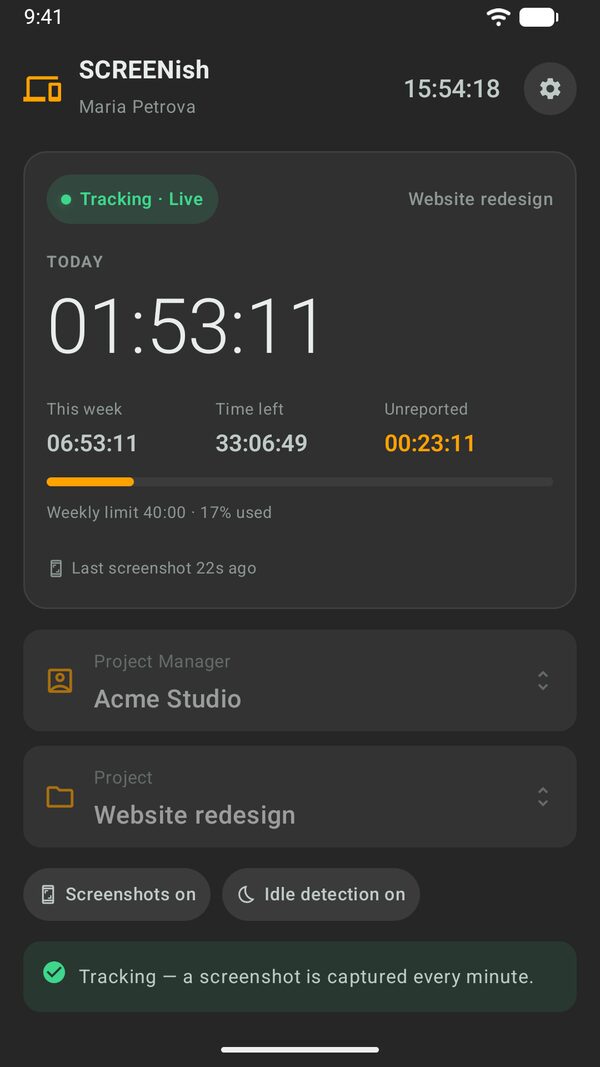
The main screen shows TODAY as a big timer, then This week, Time left and Unreported, and a bar such as Weekly limit 40:00 · 16% used when your employer set a limit. Choose Project Manager (your employer) and Project, then press START. The labels Screenshots on or off and Idle detection on or off under the project come from its settings; with screenshots off, the app tracks time only.
On Android 13 and later START first asks for permission to show notifications. If they stay off, tracking does not start and the app shows Turn on notifications with an Open settings button.
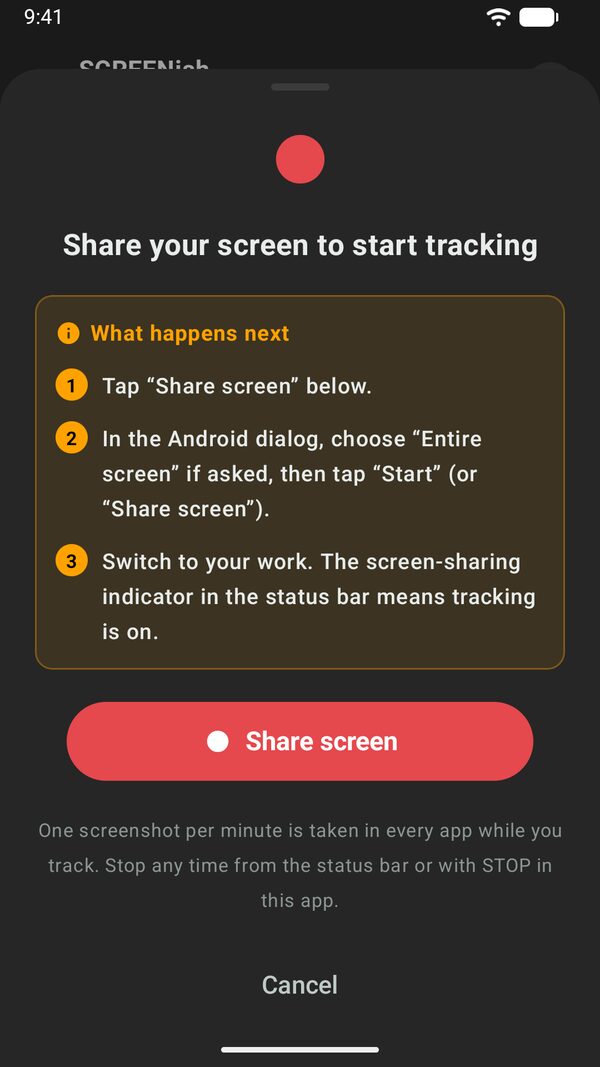
START opens a sheet, Share your screen to start tracking, with What happens next:
- Tap Share screen at the bottom of the sheet.
- In the Android dialog, choose Entire screen if it asks (the option reads Share entire screen), then tap Start (or Share screen).
- Switch to your work. The screen-sharing indicator in the status bar means tracking is on.
Nothing is recorded until you confirm.
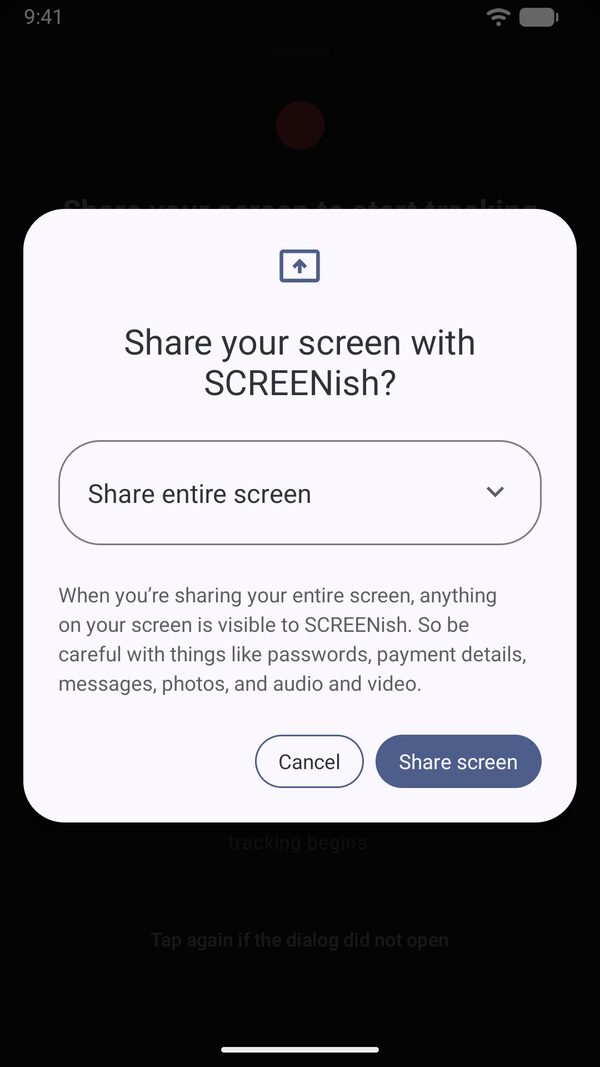
While a session runs, Android shows that the screen is shared and the app keeps a notification for it: Tracking · Live, Tracking · Idle after 2 minutes without a change, Paused while the screen is off.
What is recorded
One screenshot per minute, in whichever app you use. Every ten minutes become one report: one representative screenshot (and a small thumbnail) is uploaded with your work time, idle time, activity and your note; the other screenshots of those ten minutes are deleted on the device, never uploaded. No sound is recorded.
Idle: two minutes without a change on the screen, and the time after that counts as idle until it changes again (only on projects with idle detection on). Activity: with no keyboard or mouse, it is measured by whether the screen content changes between screenshots. It shows whether the device is in use, never what you do on it.
Add a note to your reports opens the Note screen (What are you working on?); the note goes out with your next reports.
Stopping, locking, going offline
Press STOP in the app. It asks Stop tracking? and you confirm with Stop tracking. On newer Android versions you can also stop from the screen-sharing indicator in the status bar.
Nothing is captured while the screen is off or the device is locked. On newer Android versions locking the device ends the session; a notification Tracking stopped appears, tap it and then Resume tracking.
Offline, the reports wait on the device, encrypted, and upload when you are back online; nothing is lost. Unreported on the main screen is the time not yet sent. Logging out stops tracking too; work waiting for upload stays on the device and goes out when you log in again.
If the device's date and time are wrong, the server refuses the uploads and the app says Your device clock is wrong. Set them to automatic; the recorded work is kept and uploads once the clock is right.
My reports
My reports on the main screen opens what your employer sees: any day (arrows for the previous and next day), each 10-minute report with its screenshot, idle minutes and activity percentage, one tab per employer if you work for more than one. Reports appear about 10 minutes after the work happened.
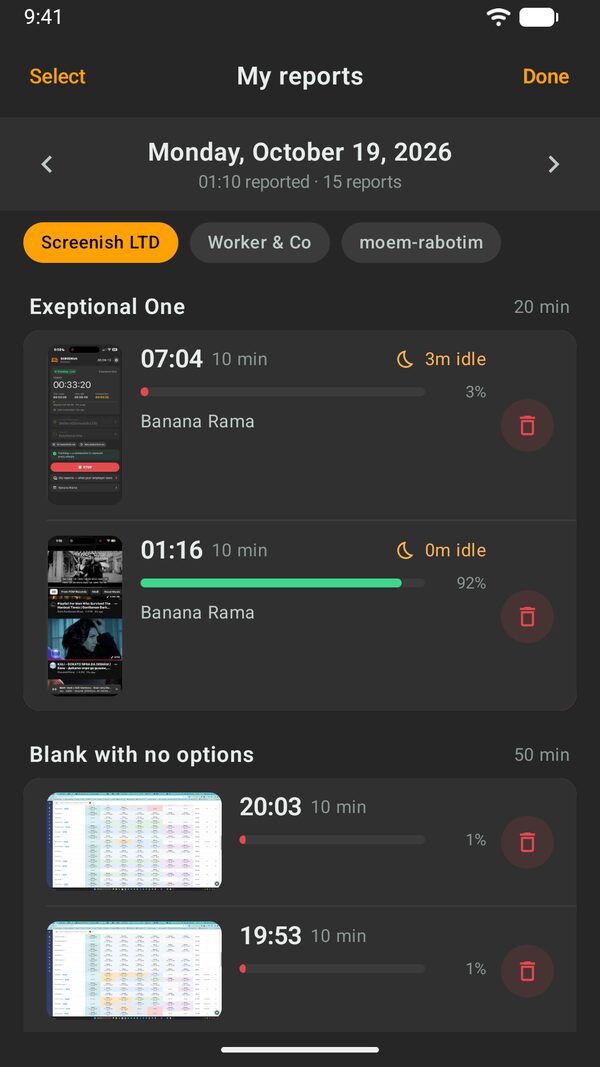
To delete, press Select, tick the screenshots, press Delete (n), then Delete for good (or Keep). The screenshot is removed from the server for good, the 10 minutes it credits go with it, and your employer sees that you deleted an entry and when. If your employer turned deletion off, the option is not there.
Privacy
No keystrokes, no browsing history, no list of apps, no location, no contacts, no camera. Screenshots and unreported time sit encrypted on the device until uploaded. When no session runs, the app has no access to the screen at all.
For the employer
The app lists only projects assigned with PC tracking. The PC / Phone switch is under PROJECT > Assign Projects to Employee(s), in the employee's Projects Management table; Phone is for the Android GPS tracking app, see Choosing PC or Phone Tracking for a Project. Screenshots and idle detection follow the project's settings, shown as labels under the project.