
Client Invoices: The Complete Guide
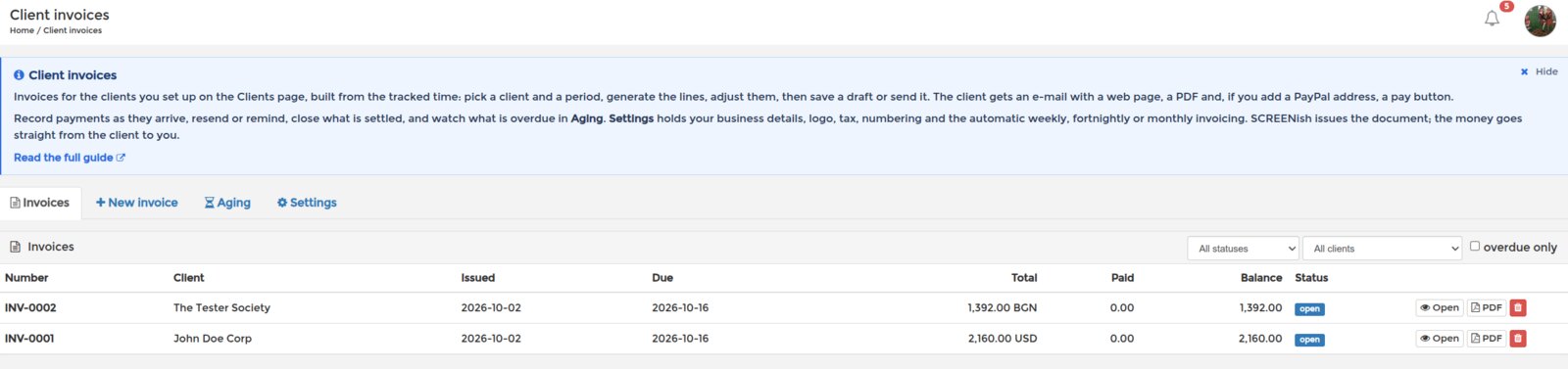
Client invoices turns the time your team tracked into invoices for your clients: a web page the client opens from an e-mail, a PDF, an optional PayPal button, payment records, reminders and an ageing view of what is overdue. SCREENish issues the document for you; the money goes straight from the client to your bank or PayPal account and never passes through us. Set up your clients first on the Clients page; this guide covers the four tabs here.
Settings: do this once
Open the Settings tab before the first invoice.
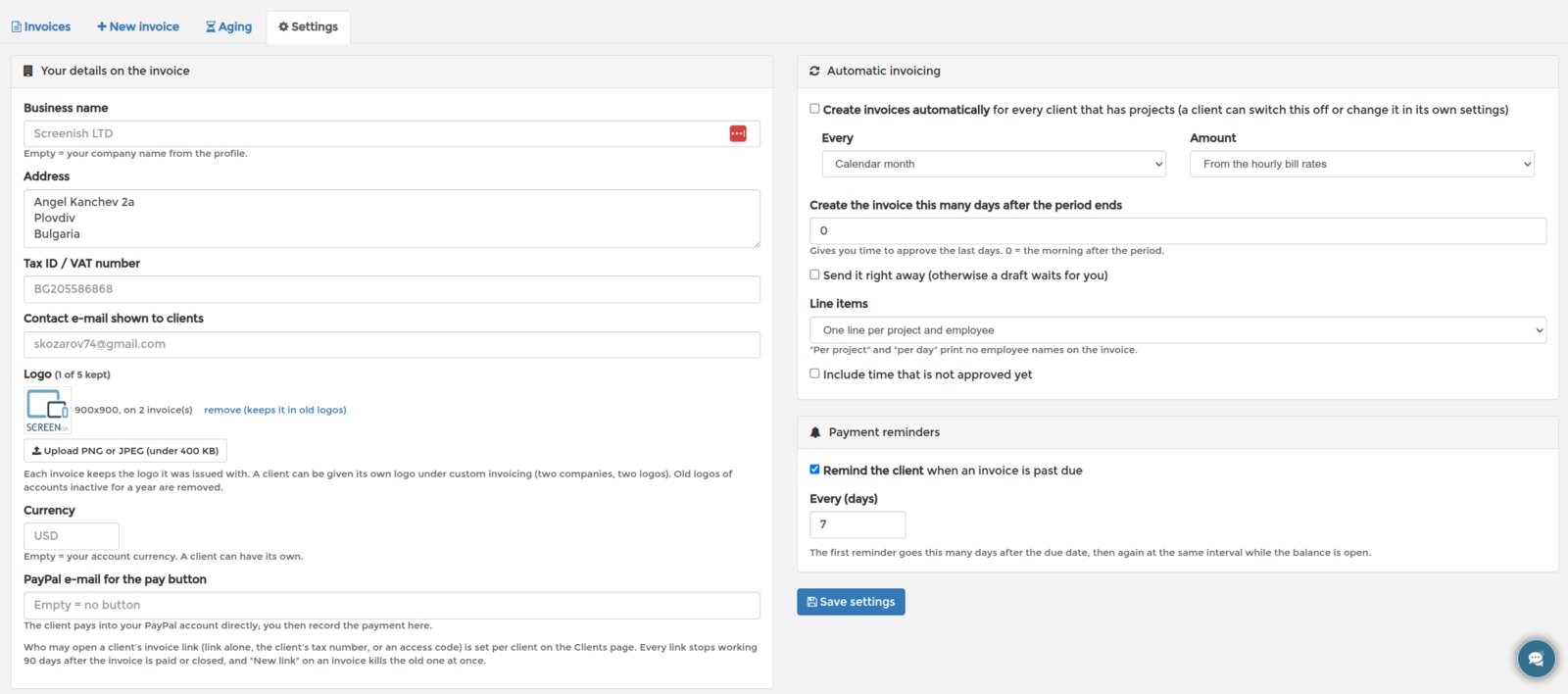
- Your details on the invoice: business name, address, tax ID and the contact e-mail shown to clients. Left empty, they come from your profile. Upload a logo (PNG or JPEG) if you want one in the header; up to five are kept. A new upload becomes the current logo and the previous one moves to Old logos, from where Use this brings it back; an old logo that no invoice prints can be deleted for good. Every invoice keeps the logo it was issued with, and a client can be given its own logo under custom invoicing, which is how you invoice under two companies from one account.
- Currency: empty means your account currency; a client can have its own.
- PayPal e-mail: when set, every invoice gets a Pay with PayPal button that pays the open balance into that PayPal account. You record the payment afterwards.
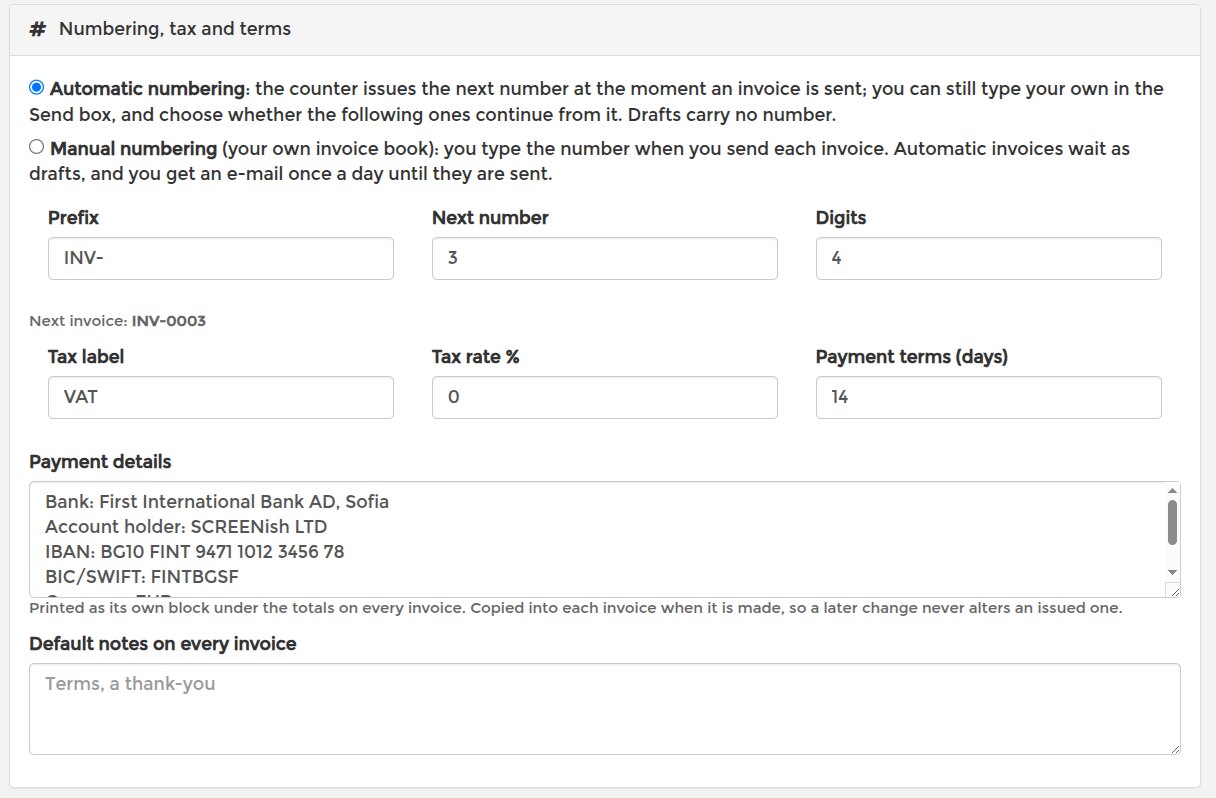
- Numbering: a draft has no number; the outgoing number is issued at the moment the invoice is sent, so a deleted draft never leaves a gap. Automatic means the counter issues the next number from a prefix, a start and a number of digits, for example INV-0001; in the Send box you can type another number instead, and SCREENish asks whether the following invoices should continue from it (your own invoice book, 0000000123 and on) or whether it was a one-off. By hand means you type the number in the Send box of every invoice; automatic invoices wait as drafts, and once a day you get an e-mail listing them until they are sent. A number already used by another invoice is refused, and an issued number never changes.
- Tax: one label and one rate (for example VAT 20%), applied after the discount. Payment terms in days set the due date from the issue date.
- Default notes are printed at the bottom of every invoice: bank details, payment instructions, a thank-you.
- Automatic invoicing: every week (Monday to Sunday), every two weeks or every calendar month, SCREENish builds an invoice per client for the period that just ended, from the hourly bill rates or as a fixed amount, waits the number of days you set so the last days can be approved, and either saves a draft for you or sends it. A client can switch this off or change it in its own settings.
- Payment reminders: once an invoice is past due, the client is reminded every so many days until the balance is paid or the invoice is closed.
Creating an invoice by hand
Open New invoice, pick the client and the period (last month is preselected), choose how the lines are grouped (per project and employee, per employee and day, per project, per employee or per day) and whether unapproved time is included, then click Generate line items from tracked time. SCREENish collects the approved 10-minute blocks of the client's projects, multiplies by the bill rates and lists the lines. You can edit any description, quantity or rate, remove a line or add a line by hand for anything that is not tracked time, such as a licence or expenses.
Two notices can appear: no bill rate for some employees (their lines show 0.00 until you type a rate here or on the Clients page) and minutes already on other invoices, which are skipped so nothing is billed twice. Set the discount, check the tax, the issue and due dates, the PO number and the notes, then Save as draft or Save and send.
What the client receives
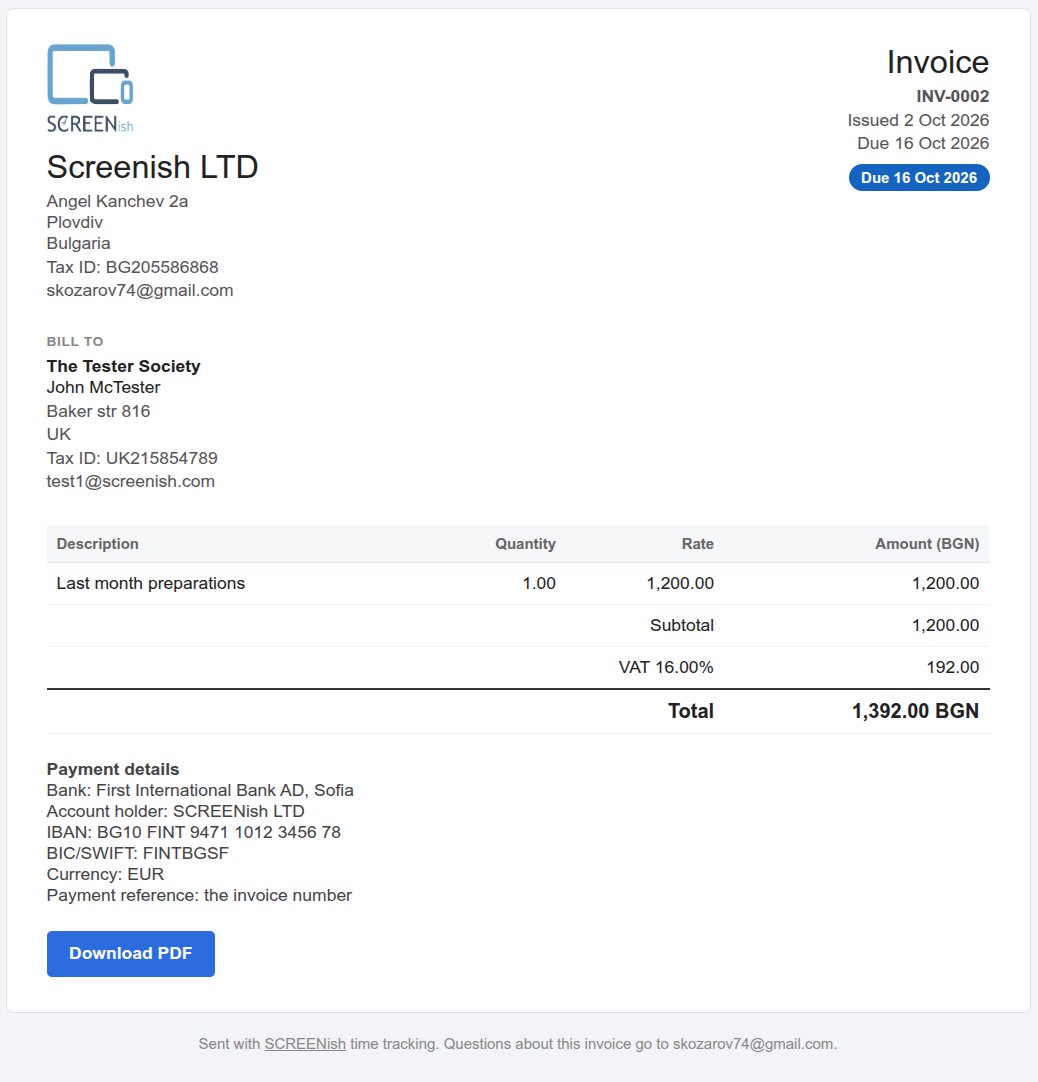
An e-mail from your business name with the amount and due date, a View invoice button, a PDF link and, if you set a PayPal address, the pay button. The web page is reachable only through its own long link, is never indexed, and the first time the client opens it the invoice records the moment, so you know it was seen. Sending a draft publishes it; until then the link answers nothing.
Statuses
Draft: not sent, fully editable. Open: sent, waiting for payment; due date, PO number and notes can still be changed. Partially paid and Paid follow the recorded payments. Closed: settled or written off by you, nothing more to do; Reopen brings it back. An open invoice past its due date is marked overdue in the list and in the Aging tab.
Payments
Open the invoice and record each payment with its amount, date, method and a note. A partial amount marks the invoice partially paid, the full balance marks it paid, and removing a payment takes it back (what Hubstaff users know as "unmark as paid"). Only the account owner records payments; delegated managers can create, edit and send invoices but not touch the money side.
Resend, remind, close, delete
From the invoice you can resend it to the same or another address with a message, close it, reopen it and delete it. Deleting releases the invoiced time, so it can be invoiced again. Reminders go out by themselves when they are switched on; every send and reminder is listed in the invoice's history, and the system sends to at most 20 recipients per hour.
Time that is already invoiced
A day of one employee on one project is invoiced once. When the lines of a new invoice overlap an existing one, the overlapping minutes are skipped, and saving an invoice whose time was taken meanwhile is refused with a message. Editing approvals in the work log after an invoice is created does not change the invoice; it keeps the minutes it was built from and shows a warning when the work logs no longer match.
Aging
The Aging tab adds up the open balances per client by how long they are overdue: not yet due, 1 to 30 days, 31 to 60, 61 to 90 and over 90. Drafts and closed invoices are not counted.
Every invoice has a PDF, from the list, from the invoice itself and from the client's page. On a computer it is produced in the browser of whoever asks for it, on a phone by SCREENish, with the same layout either way: your details, the client block, the lines, totals, tax, payments and the balance, in any alphabet.
Who can open the client's link
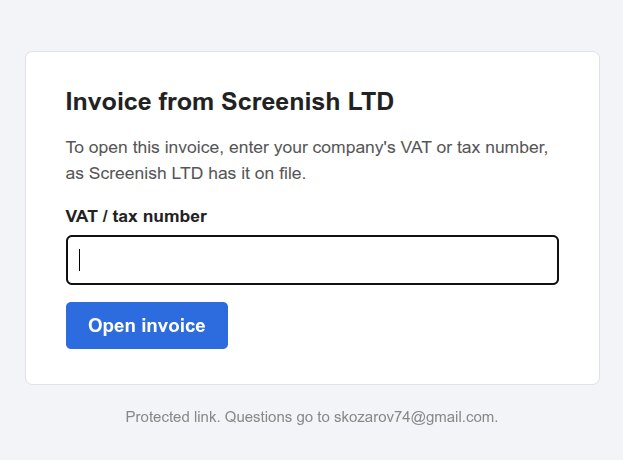
The client's page is behind a long, unguessable link, the way Stripe or Hubstaff invoices work. On the client's card, Protecting this client's invoice links can also ask the visitor for the client's VAT or tax number, or for an access code you set there; a wrong answer is refused and repeated attempts are throttled. The button next to the code, E-mail the code to the client, sends it in a message of its own, never together with an invoice, so a forwarded invoice e-mail opens nothing on its own. Every link stops working 90 days after the invoice is paid or closed, and New link on an invoice kills the old one at once, for example after an e-mail went to the wrong address. The formats "per project" and "per day" print no employee names, if you prefer the client not to see them.
Read more: Clients: The Complete Guide, Accounting: The Complete Guide, Work Log: The Complete Guide.