
Clients: The Complete Guide
Clients are the companies you bill for tracked time. On this page you create them, decide which of your projects are billed to each one, set the hourly bill rates (what the client pays, separate from what you pay the employee) and give a client read-only access to a project. Invoices themselves are made on the Client invoices page; this guide covers everything that comes before.
Creating a client
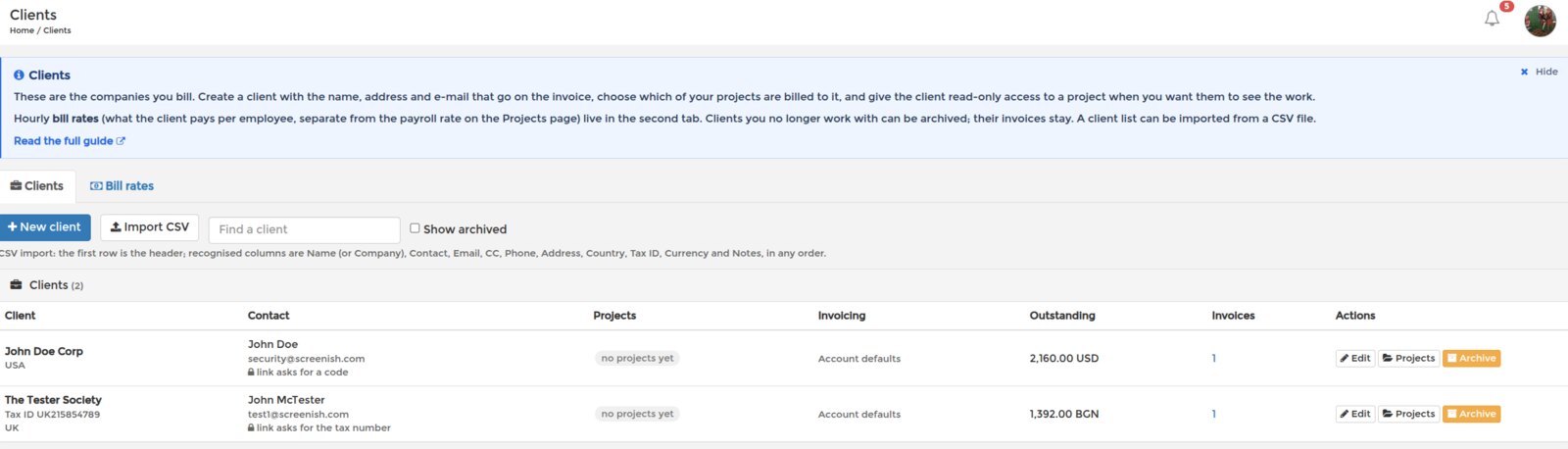
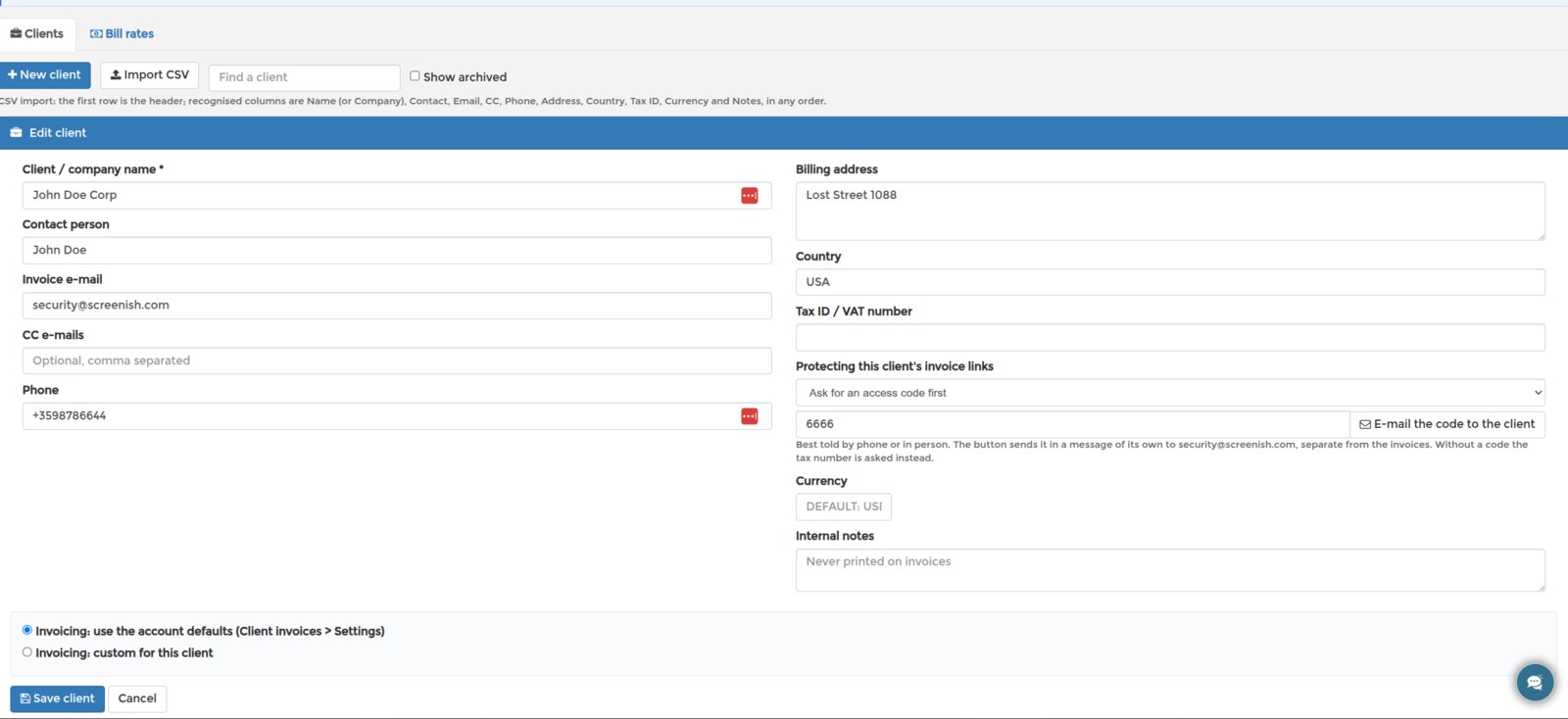
Click New client. The name is the only required field; it is printed as the company on the invoice. Add the contact person, the invoice e-mail (where invoices and reminders are sent), optional CC addresses, phone, the billing address, country and the client's tax ID so the invoice carries both tax numbers. A currency of its own is optional; otherwise the client is billed in your account currency. Internal notes are for you and never printed.
Default or custom invoicing
Every client follows the account defaults from Client invoices > Settings: tax rate, payment terms, how lines are grouped, automatic invoicing and reminders. Choose Custom for this client to override any of them for one client, for example a client invoiced every week at a fixed retainer while everyone else gets a monthly invoice from the hourly rates, or a client with a different tax rate because of where they are. The options are the same as in Settings and are explained in the Client invoices guide.
Projects billed to the client
Click Projects in the client's row and tick the projects whose time is invoiced to this client. A project belongs to one client at a time; ticking a project that is billed to another client moves it. Projects without a client are simply never invoiced, which is fine for internal work. The Invoice button appears once a client has at least one project.
Sharing a project with the client
Next to each project pill is a share icon. It gives the client's invoice address a read-only work log of that project: screenshots, hours and activity of the people working on it, nothing else, no SCREENish account needed. This is the same share as the Share with client column on the Projects page; use whichever is closer at hand.
Read more: Sharing Project Progress with Clients, Client Sharing: What Your Client Can See.
Bill rates
Open the Bill rates tab. Each employee has a default bill rate: what a client is charged for one hour of this person on any project. Click the pencil, type the rate per hour, save. Add a project override when one project is billed at a different rate: pick the employee, the project and the rate. Overrides win over the default. Deactivated employees stay in the list because their past time may still need invoicing.
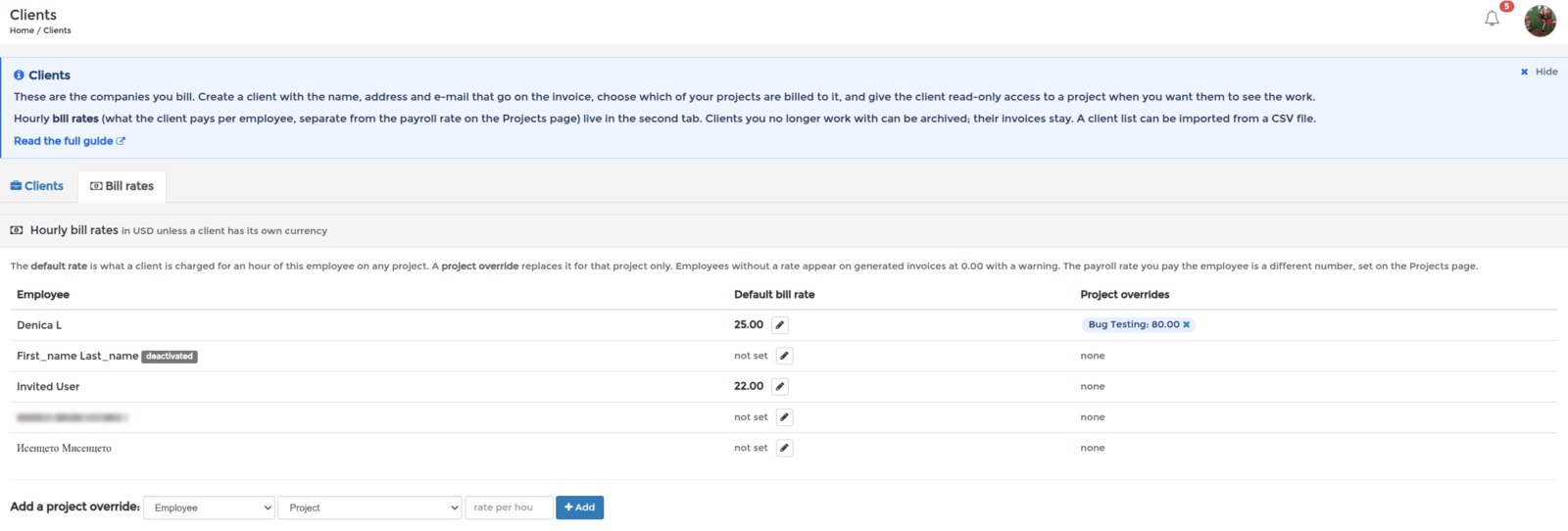
An employee without a rate appears on a generated invoice at 0.00 with a warning, and you can type the rate on the invoice itself. The hourly rate on the Projects page is unaffected: that one is what you pay, this one is what you charge.
Read more: Setting Employee Hourly Rates, Accounting: The Complete Guide.
Importing a list
Import CSV takes a file with a header row. Recognised columns: Name (or Company), Contact, Email, CC, Phone, Address, Country, Tax ID (or VAT), Currency and Notes, in any order; other columns are ignored. A row whose name already exists is skipped, and so is a row with an invalid e-mail; the result tells you which ones.
Archiving and deleting
Archive hides a client you no longer work with: it disappears from the lists and from the invoice form, its invoices stay, and Restore brings it back at any time (tick Show archived to see it). Delete is only offered for clients without invoices.
What the table tells you
For every client you see the projects billed to it, whether it uses the account defaults or custom invoicing (and the automatic schedule, if any), the outstanding balance of open invoices and the number of invoices, which opens the Client invoices page filtered to that client.
Read more: Client Invoices: The Complete Guide.