
Project Monitoring Options: Allow Diagnostic Collection
Follow this guide when SCREENish support asks you to allow diagnostic collection for an employee, or when you have reported a problem with the tracking app on one computer — missing screenshots, hours not recorded, the app closing on its own — and support needs the app's own log files to find the cause. The switch is Off by default and is set per employee and per project.
Turning it on
- Go to PROJECTS > Assign Projects to Employee(s).
- Find the employee, then click Advanced Options in the project's row of their Projects Management table.
- In Employee Monitoring Options, switch Allow Diagnostic Collection to On.
- Press Save Changes.
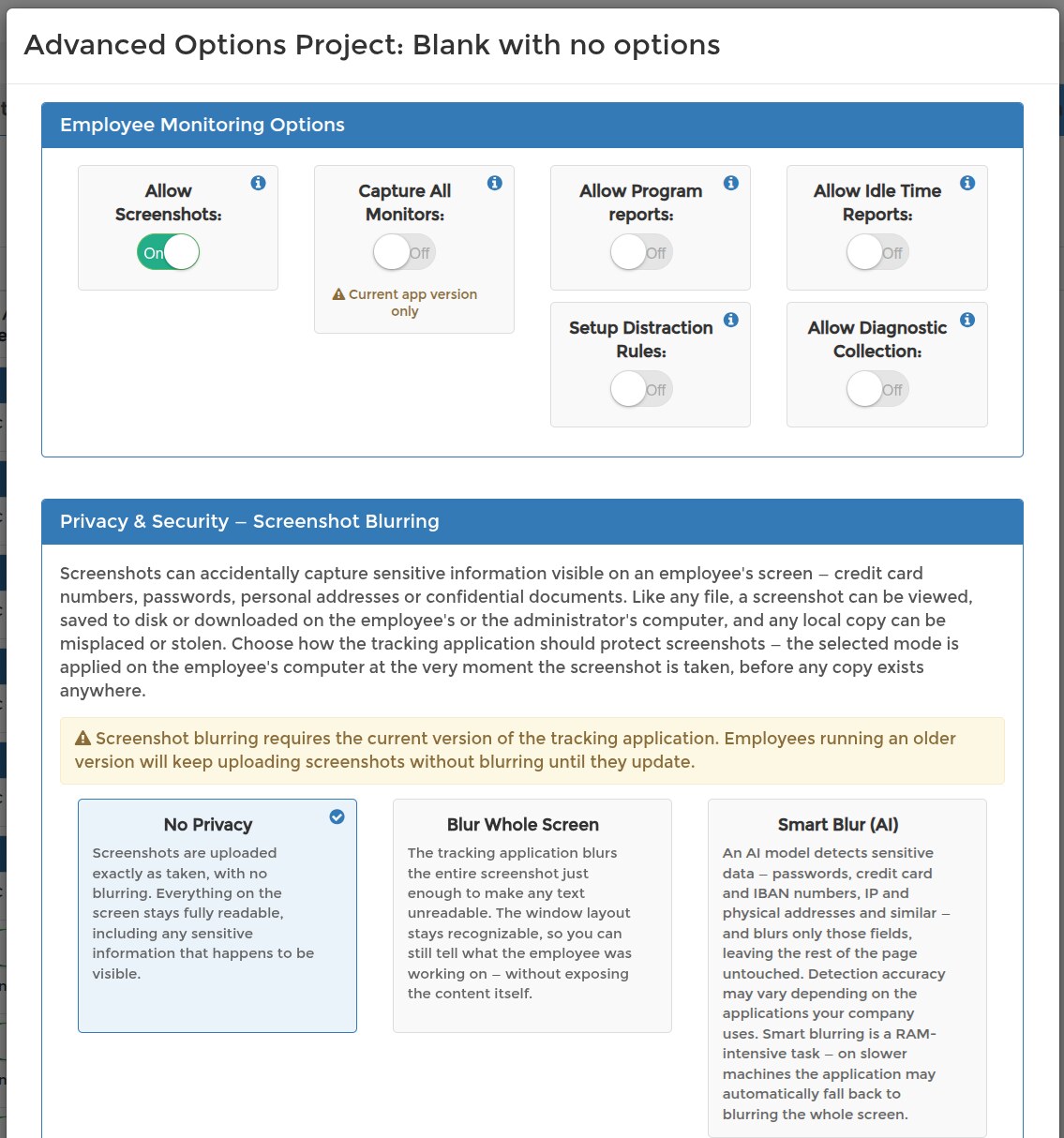
The permission reaches SCREENish within a few minutes; the employee does not need to restart the app for that part. Like every other monitoring setting, the change is written to the settings journal with who changed it and when.
What the switch does — and what it does not
Turning it On collects nothing by itself. Log files leave the employee's computer only while both of these are true:
- Allow Diagnostic Collection is On for that employee on a current project, and
- SCREENish support has opened a documented request for that employee in its request register — who asked, when, why, and until when. A request expires on its own after 7 days.
The app checks for an open request once a day, when the employee signs in. If both conditions hold, it packs its log files into one archive, uploads it, and deletes the local copies. While the request stays open it may check again the next day; once support marks the request fulfilled, or it expires, or you switch the permission Off, the uploads stop.
What is in the archive
- No screenshots and no images. The archive holds the app's technical logs only.
- The employee's user ID and work e-mail, the names of applications, windows and files that were open, device and operating-system information, error messages and the app's own measurements.
- At most the last 10 days — the app keeps no older logs, so an archive never covers more.
- Stored in the employee's own storage area, readable by the support role only, and deleted automatically after 45 days.
What your employee sees
Each time an archive is sent, the app shows a notice on the employee's screen and as a system notification, for example: “Diagnostic record sent — 14 September 2026, 10:12. Covering 2–14 September (3 files, 1.2 MB). Sent to SCREENish support at your employer's request. Will be deleted on 29 October 2026.” The same records are listed in the app under Settings > Diagnostic records. Nothing is collected silently, and the monitoring notice your employees acknowledge at sign-in describes this collection.
Turning it off
Open the same Advanced Options dialog, switch Allow Diagnostic Collection to Off and press Save Changes. From that moment no archive is sent for that employee, even if a support request is still open. Support marks the request fulfilled once the logs arrive, and requests expire after 7 days in any case — but the switch is yours, and turning it Off when the case is closed is the tidy thing to do.
Check the result
Reopen Advanced Options for that project: Allow Diagnostic Collection should show On. Support will confirm when the archive has arrived, usually after the employee's next sign-in — ask the employee to restart the app if you want to speed that up. On the employee's side, the new entry appears under Settings > Diagnostic records.
Related: Project Monitoring Options: Screenshots, Programs and Idle Time · Project Monitoring Options: When Setting Changes Take Effect · Workforce Monitoring Notice: The Screen Workers See at Sign-In