About SCREENish Time Tracking
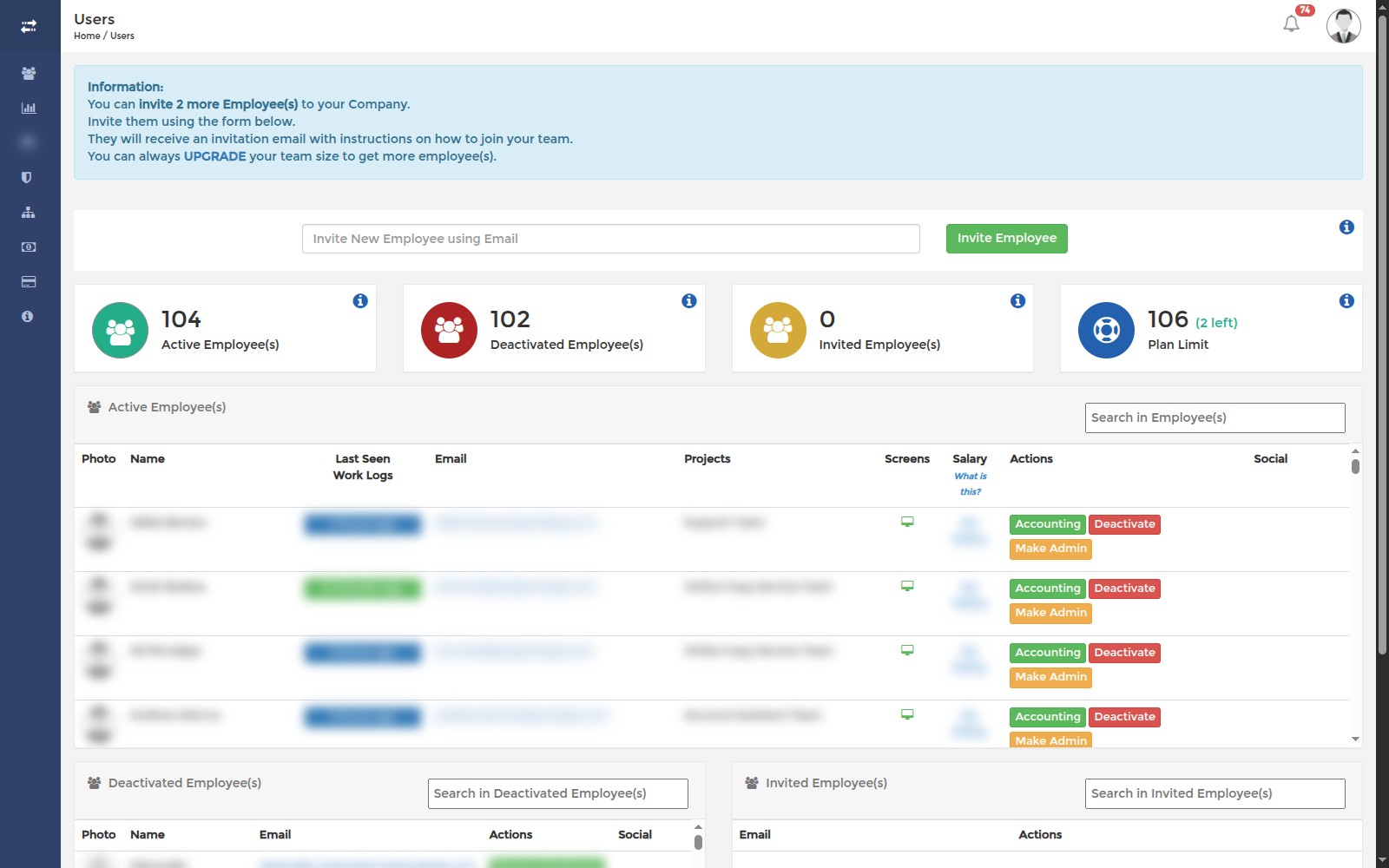
SCREENish is time tracking software with screenshots for remote, hybrid and in-house teams. A lightweight desktop app for Windows, Mac and Linux records the hours your employees work, takes periodic screenshots, and measures activity and idle time — and the employer dashboard turns all of that into work logs, attendance and overtime reports, payroll and invoices. Teams in the field can use phone tracking instead of the desktop app.
How tracking works
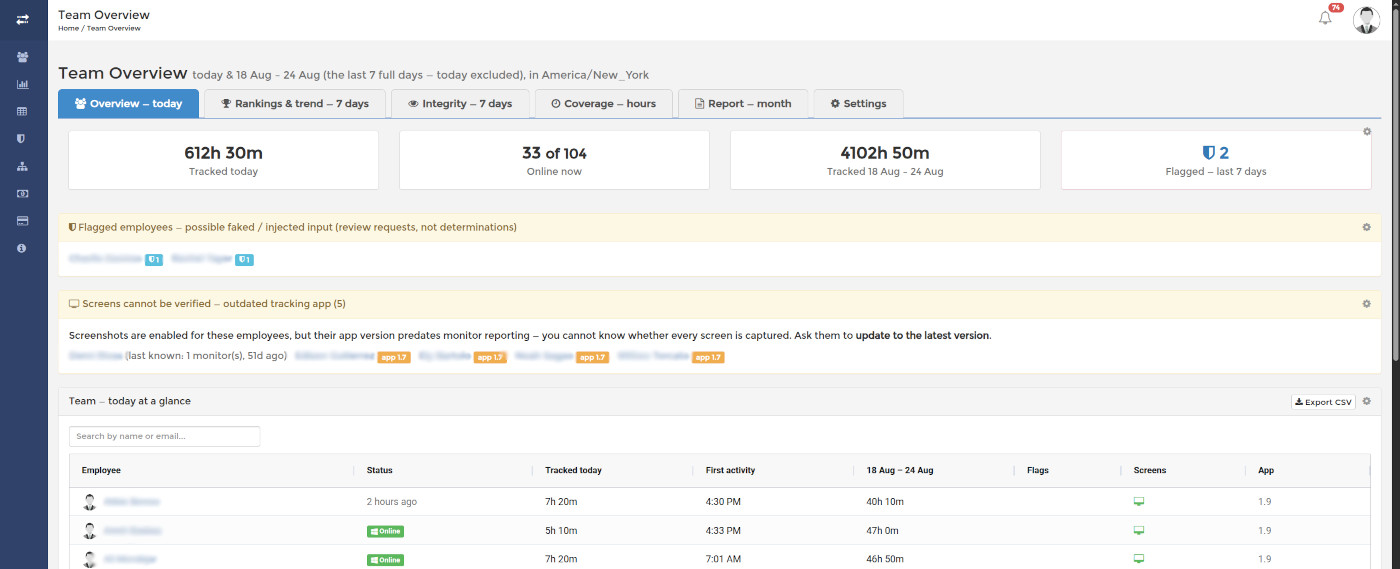
An employee downloads the app, logs in, picks a project and presses start. While the timer runs, the app captures screenshots at random moments within each 10-minute interval — on every monitor, with an optional privacy blur — and records activity as input counts (clicks, keys, scrolling), never what is actually typed. Idle periods are detected automatically, and employees can attach notes describing what they worked on.
What managers see
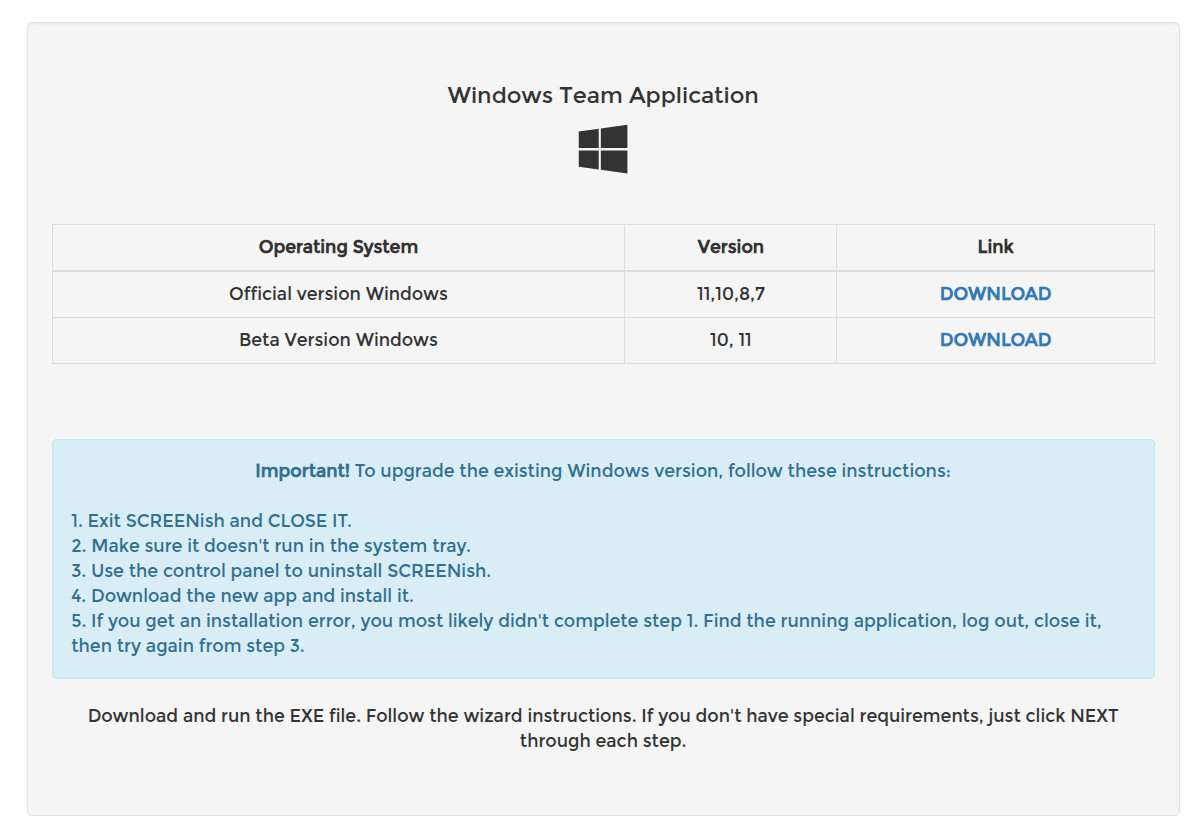
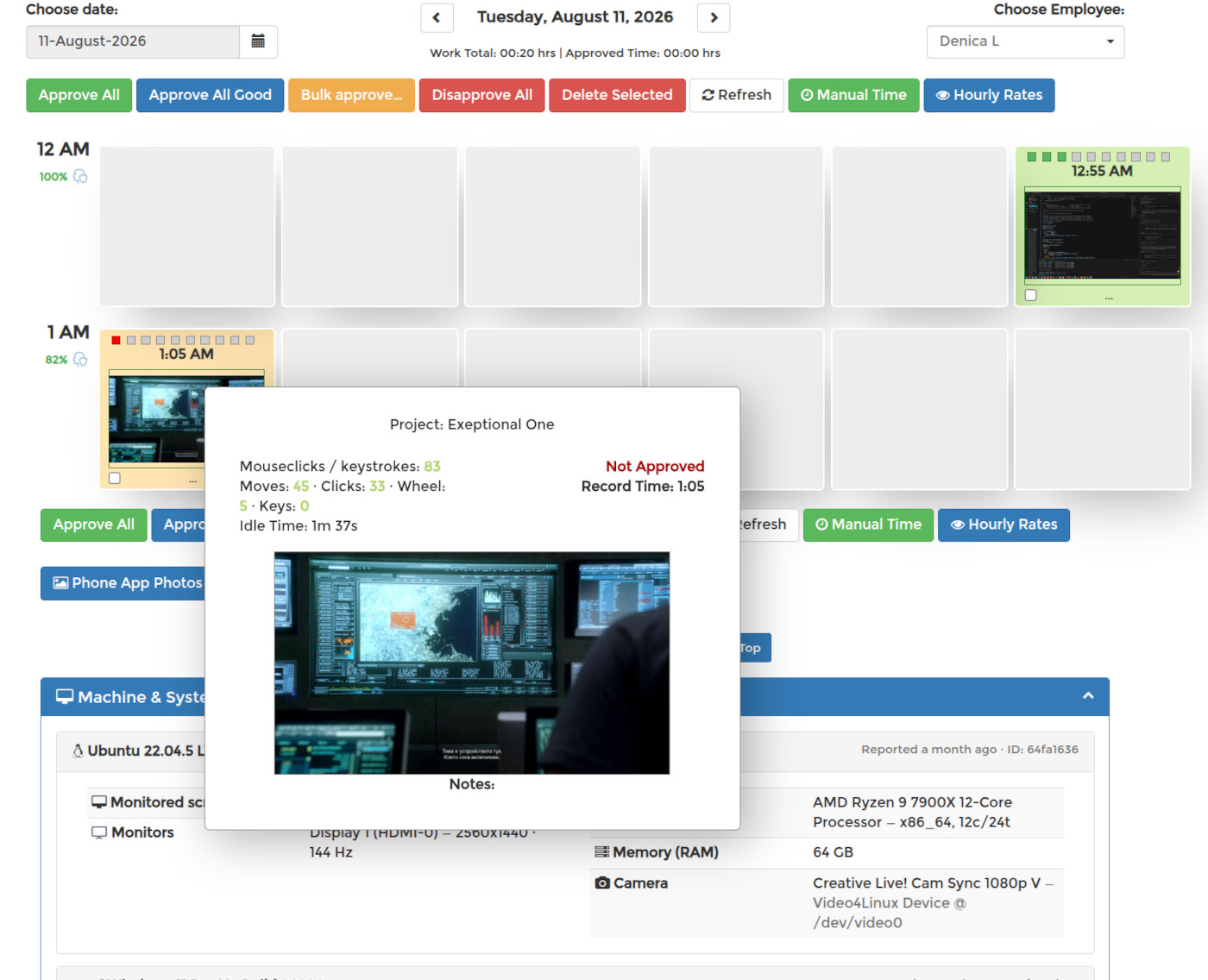
The work log shows every employee's day slot by slot: screenshots, activity level, idle time, notes and the programs they used — see Checking Employee Activity and Productivity. The Team Overview page puts the whole roster on one screen — who is online, who started when, rankings, integrity signals and staff coverage by hour — and the monthly attendance and overtime report automates the end-of-month sheet: worked and missed days, attendance percentage, weekday and weekend overtime.
Projects, rates and rules
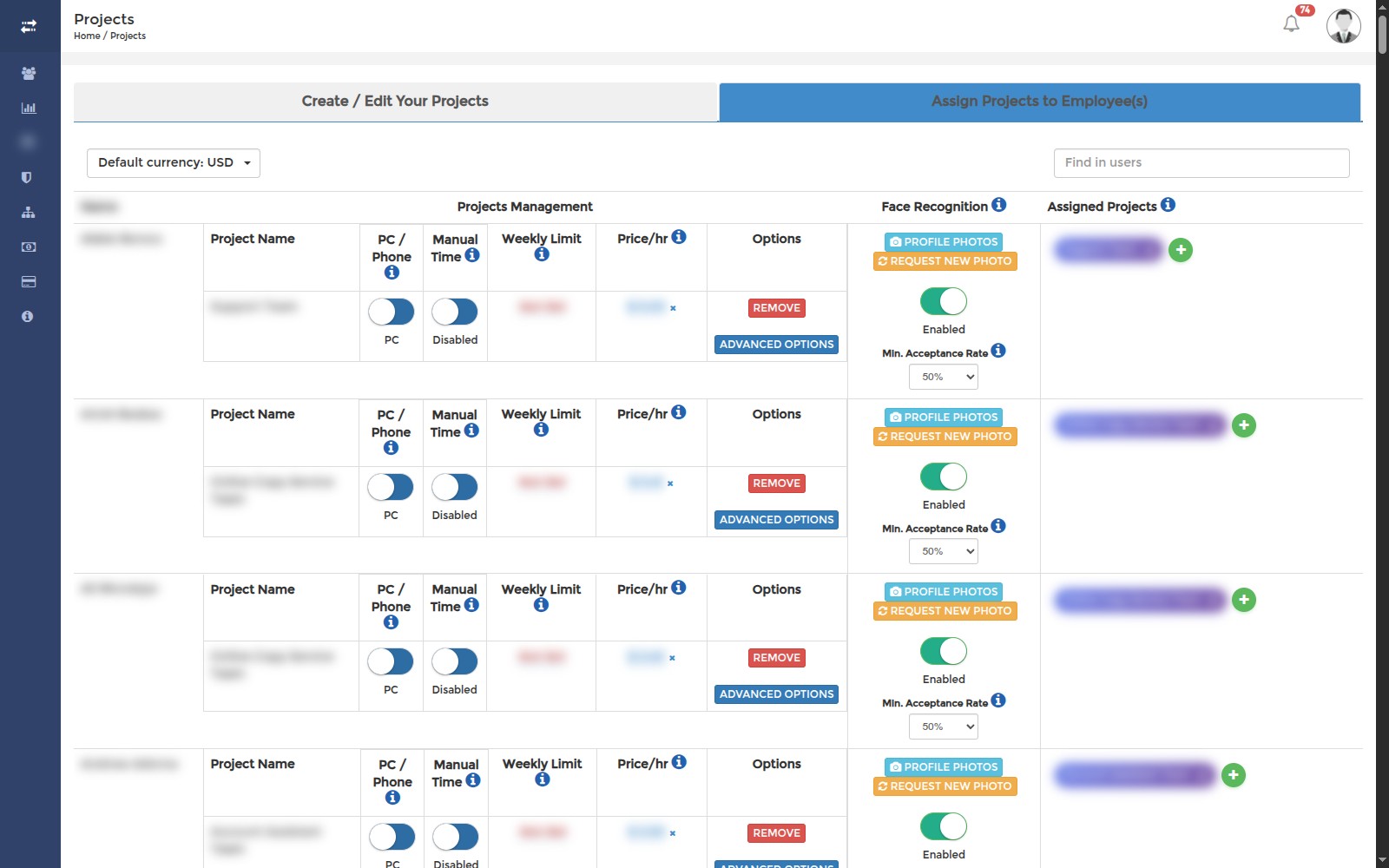
Everything is controlled per project and per employee: hourly rates, weekly hour limits, whether manual time entries are allowed, which monitoring options run (screenshots, program reports, idle reports), and distraction reporting that measures the time spent on marked websites and apps. Projects: The Complete Guide walks through every option, and this guide explains when setting changes take effect.
Payroll and billing
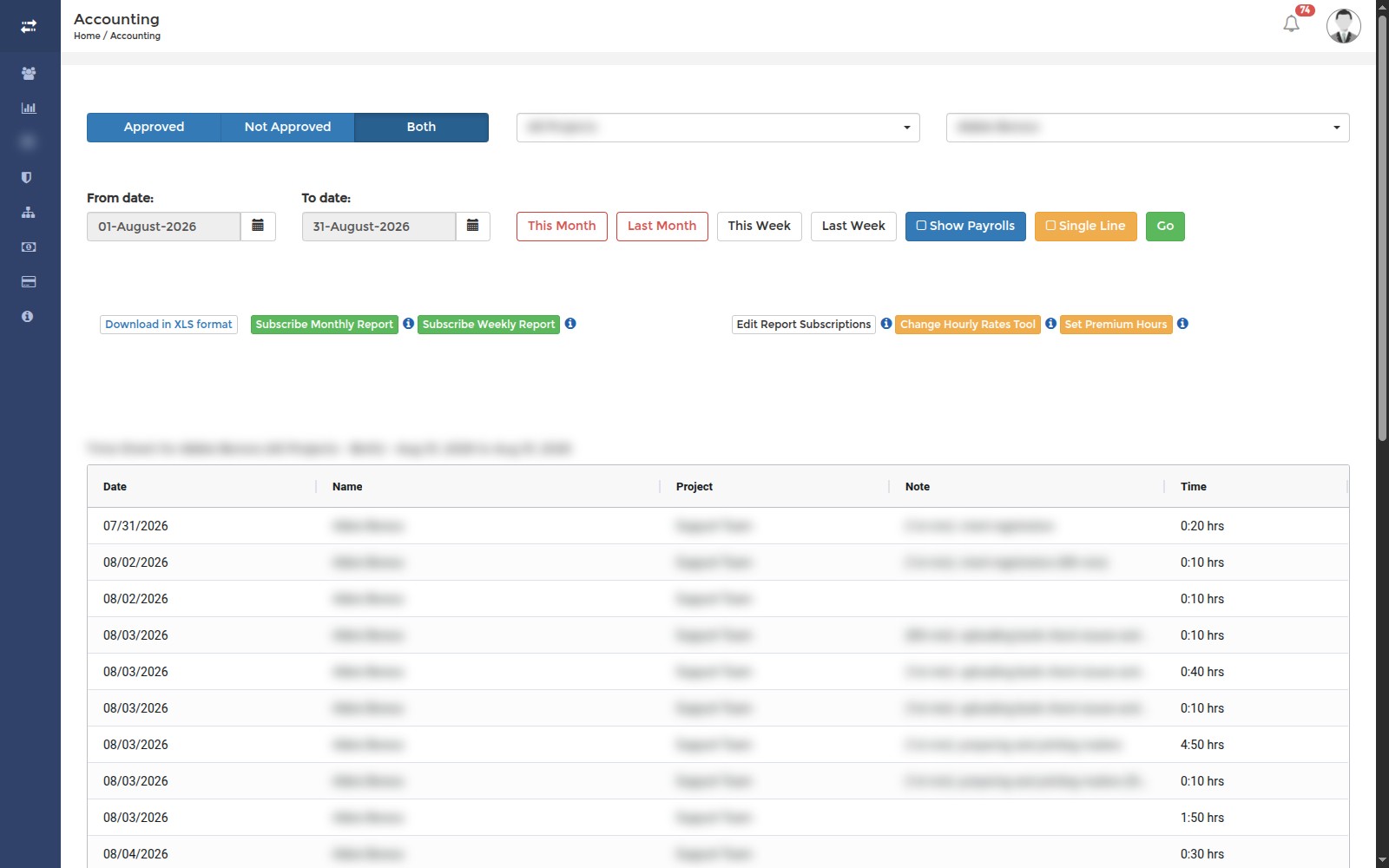
Tracked hours multiplied by the rates you set become payroll per employee and per project, and your subscription invoices are always available in the dashboard. SCREENish costs $5 per employee per month, every feature included, and the employer (admin) account is free.
What SCREENish is not
SCREENish is a tool employers use for their own teams. It is not a know-your-customer (KYC) or identity verification service, and we offer no KYC jobs or KYC work. Face verification only confirms that the person at the computer is the employee who is supposed to be working there; it cannot be used to verify anyone else's identity.
Getting started
Invite your employees by email, assign them projects, and tracking starts with their first timer. One principle runs through the whole product: the numbers suggest — flags, indexes and thresholds are requests to look closer, and a human always decides.